
← All guides
Secure your Queek account with a password and two-factor authentication
Update your password safely, enable two-factor authentication when available, and check your active sessions.
Use a unique password and keep your second-factor recovery method somewhere safe.
What you need
- Your current password.
- A password manager and an authenticator app or recovery method, if required.
Secure the account on desktop
- Open the account menu and choose Account, then open the Security tab.
- Under Change Password, enter Current Password, New Password, and Confirm Password.
- Press Update Password and sign in again if Queek asks you to.
- Turn on the Two-Factor Authentication switch and complete the authenticator setup shown by Queek.
- Enter the verification code and store any recovery information somewhere private and recoverable.
- Review the account’s active sessions or devices when that list is shown, and sign out anything you do not recognise.
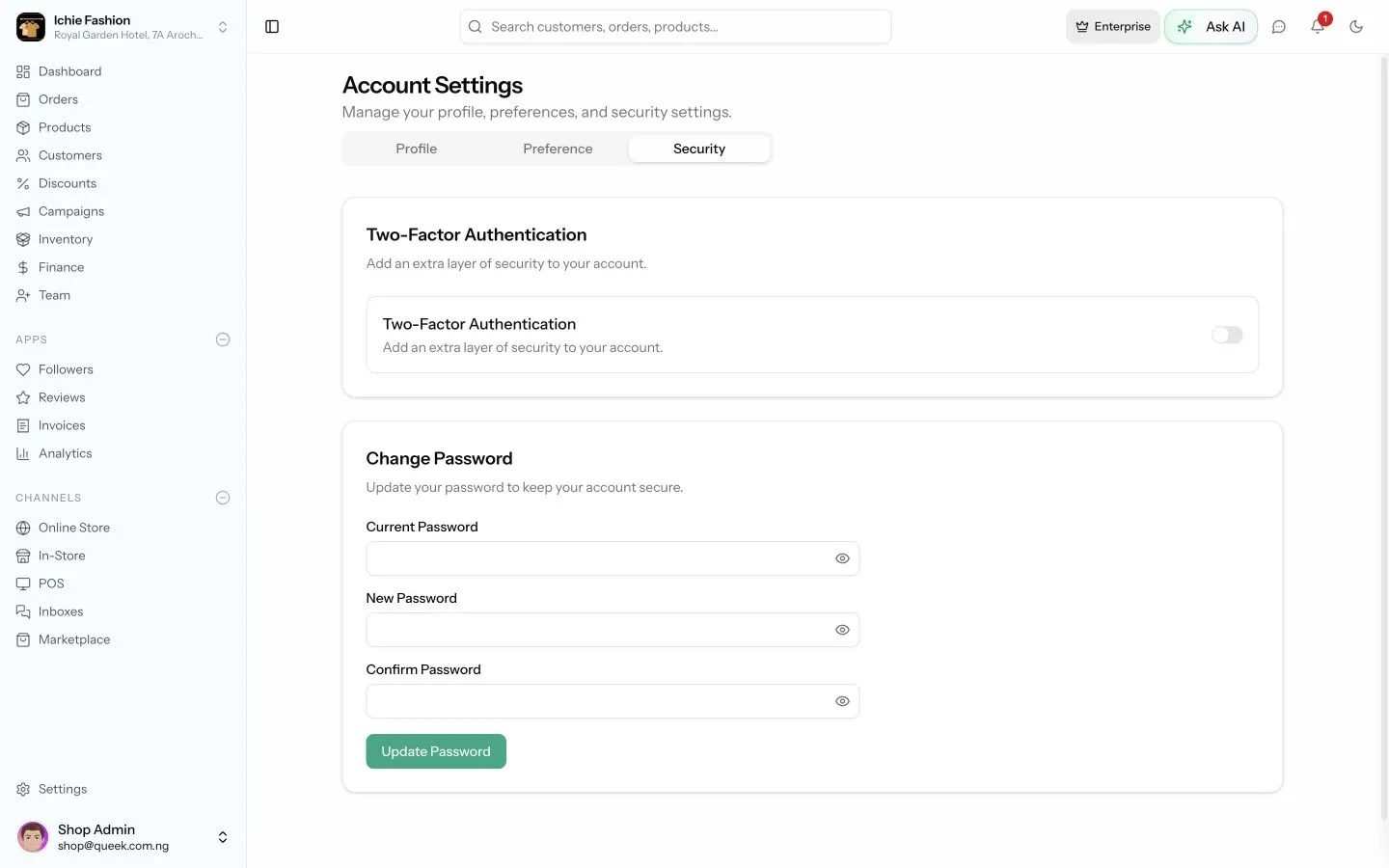
Check the desktop result
- The password change completed.
- Two-factor authentication shows enabled, if available.
- Recovery codes are stored privately and unknown sessions are signed out.
Secure the account on mobile
- Tap the account menu, open Account, and tap the Security tab.
- Fill Current Password, New Password, and Confirm Password, then tap Update Password.
- Sign in again if Queek requests it.
- Turn on Two-Factor Authentication, finish the authenticator setup, and enter the verification code.
- Store recovery information privately, review active sessions when shown, and sign out any session you do not recognise.
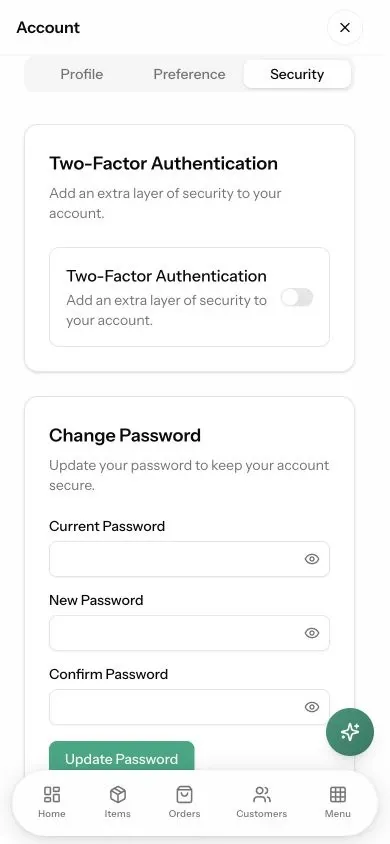
Check the mobile result
- The account accepts the new password.
- Two-factor authentication is enabled when supported.
- Unknown sessions are removed.