
Add or edit a product in Queek
Add a product with the right price, description, stock, image, and sales channels, then update it safely when something changes.
By the end of this guide, one product will be ready for customers and you will know where to change it later.
What you need
- A merchant login.
- The product name, selling price, description, stock quantity, and at least one product image.
- The channels where customers should see the product.
Create the product on desktop
- Open Products in the sidebar. Food vendors see Menu Items and service vendors may see Services.
- Press Add, then wait for the New Product form to open.
- Fill Title, Description, and Selling Price. Add an Excerpt only when the short card summary should differ from the full description.
- Add the product to a Collection when it belongs in one, then add tags if you use tags for search or filtering.
- Open Channels and select every place that should sell the item, such as Online Store, Inboxes, POS, or In-Store.
- Turn on Track Inventory when stock must be counted, enter the available quantity, and leave Available on only when customers may buy it now.
- Under Media, press Add product images and choose the product’s photos. The first photo is the featured image; drag photos (or use the arrows) to change the order, and press Add for more. Add Attributes such as Size or Color only when the product has variants.
- Review the generated variant rows, prices, and stock when you added attributes, then press Create Product.
- Reopen the new product from the catalog and check its title, price, visibility, channels, image, and stock before sharing it.
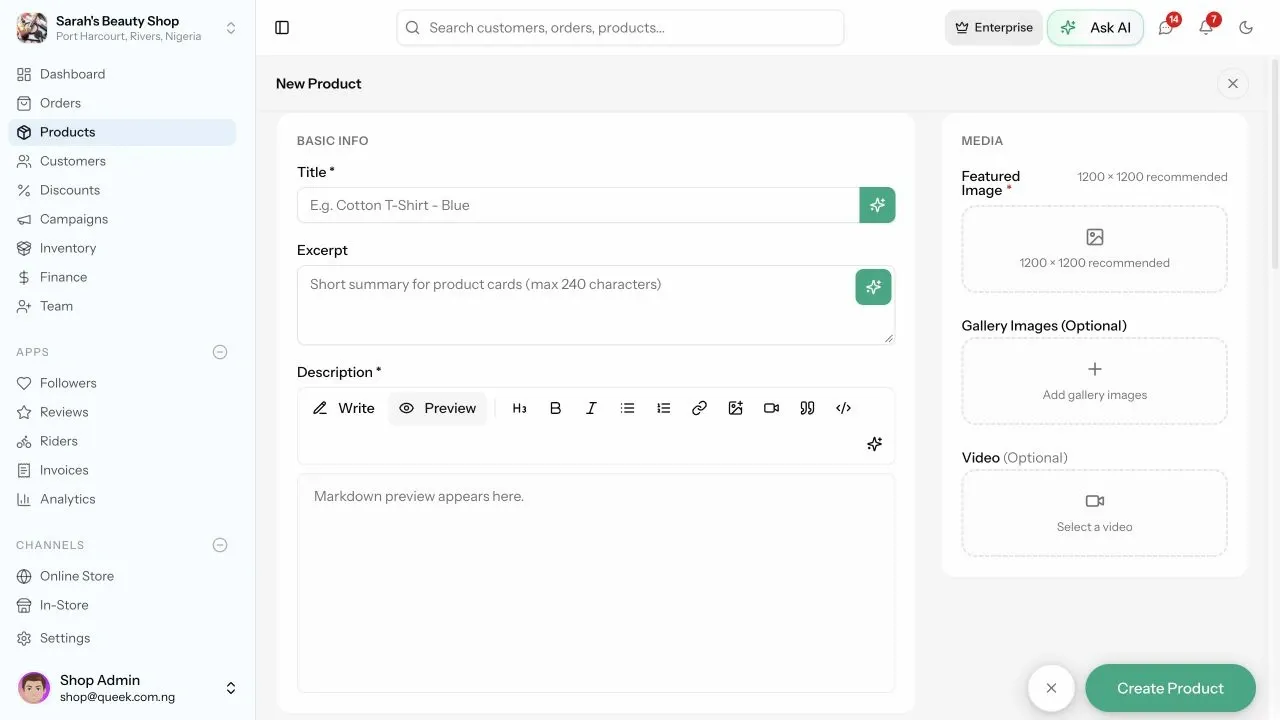
Desktop create form: after pressing Add, complete the required fields and finish with Create Product.
Edit a product safely
Open the product from the catalog, choose Edit item, change only the field that needs attention, and save the form. If stock changed because of a sale or delivery, update the stock field instead of changing the product title. After saving, reopen the product and confirm the updated value is visible in the list.
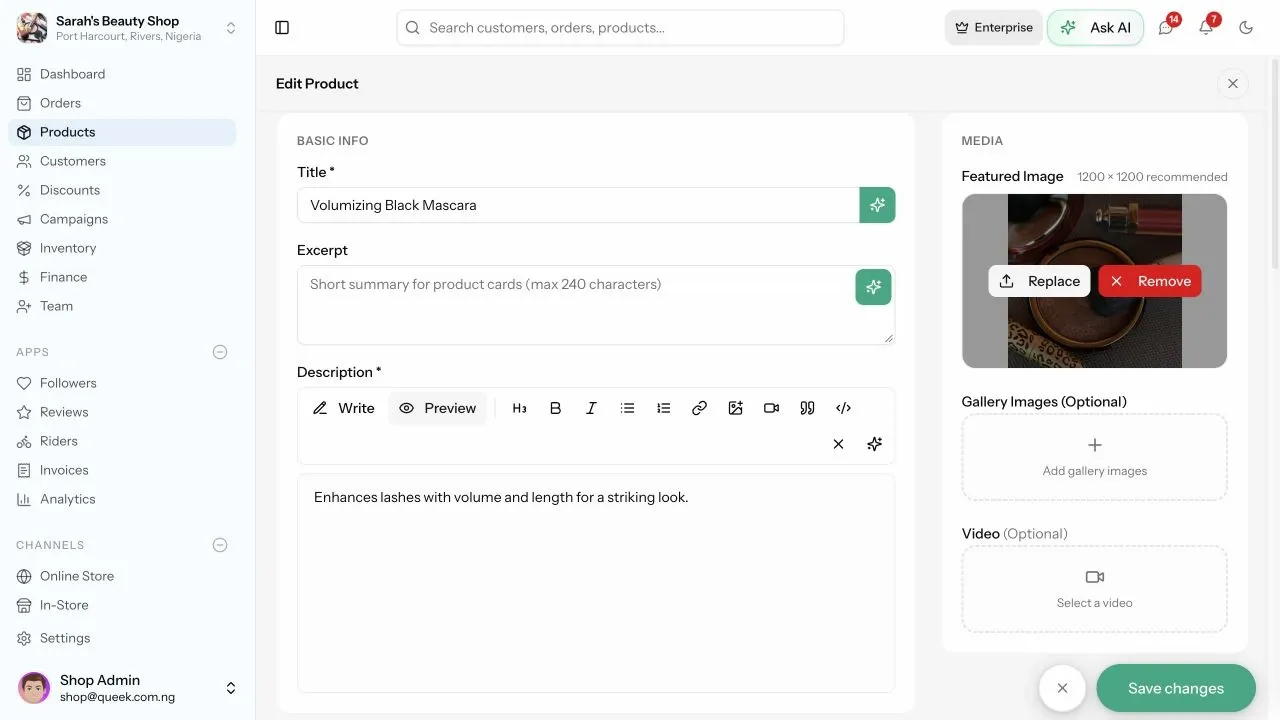
Desktop edit form: the existing values are loaded; save the change with Save changes.
Check the desktop result
- The product appears in the catalog with the correct title and selling price.
- The stock quantity matches what is physically available.
- At least one intended sales channel is selected.
Create the product on mobile
- Open Menu, then tap Products. Food vendors see Menu Items and service vendors may see Services.
- Tap Add, then wait for New Product to open.
- Fill Title, Description, and Selling Price. Add an Excerpt only if the card needs a shorter summary.
- Choose a Collection, add tags if needed, then open Channels and select the sales channels for this product.
- Turn on Track Inventory when stock must be counted, enter the quantity, and check the Available switch.
- Under Media, tap Add product images and choose the product’s photos (the first one is the featured image), then add any attributes that create variants.
- Review each variant’s price and stock, then tap Create Product.
- Reopen the product and verify the details before sharing it.
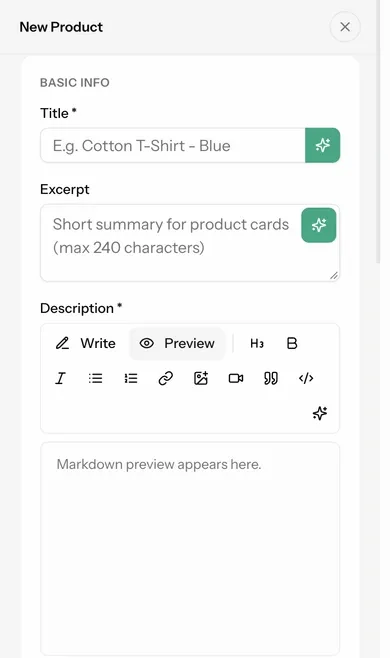
Top of the mobile create form: confirm the required Title, Excerpt, and Description fields, then scroll through the remaining sections to Create Product.
Edit a product on mobile
Open Menu → Products, tap the pencil action on the correct product row, and wait for Edit Product to open with the saved values. Change only the field that needs attention, scroll to the bottom, tap Save changes, then reopen the row to confirm the updated value.
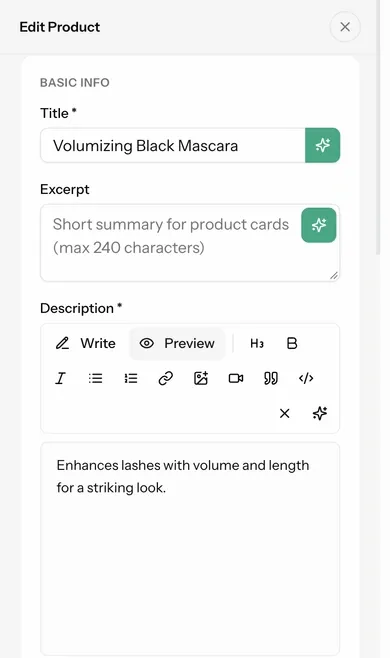
Top of the mobile edit form: confirm the loaded product title and description before scrolling down to Save changes.
Check the mobile result
- The product is visible in the catalog list.
- The price and stock are correct.
- The product is enabled for the channel you plan to share.