
← All guides
Import and update multiple products in Queek
Use the catalog bulk-update tools to change prices or stock across several products without editing them one by one.
Use this guide when several prices or stock quantities need the same kind of change. Make a backup of your current values before a large update.
Before you start
- Confirm which products are changing.
- Prepare the new prices or quantities.
- Do not use a bulk update to change unrelated fields at the same time.
Run a bulk update on desktop
- Open Products in the sidebar.
- Open the catalog Actions menu and choose the bulk-update option, or open Quick Bulk Edit directly.
- Search for the products you want to change. Use Collections, Filter, Channel, or Sort to narrow the list before selecting rows.
- Select only the products that should change, then edit the Price, Stock, or other available inline value for the selected rows.
- Review the affected names and new values carefully. Quick Bulk Edit autosaves each changed row and shows Saving… followed by Saved; wait for Saved before leaving the page.
- Return to the catalog, reopen at least one updated product, and confirm the value also appears correctly on its detail page.
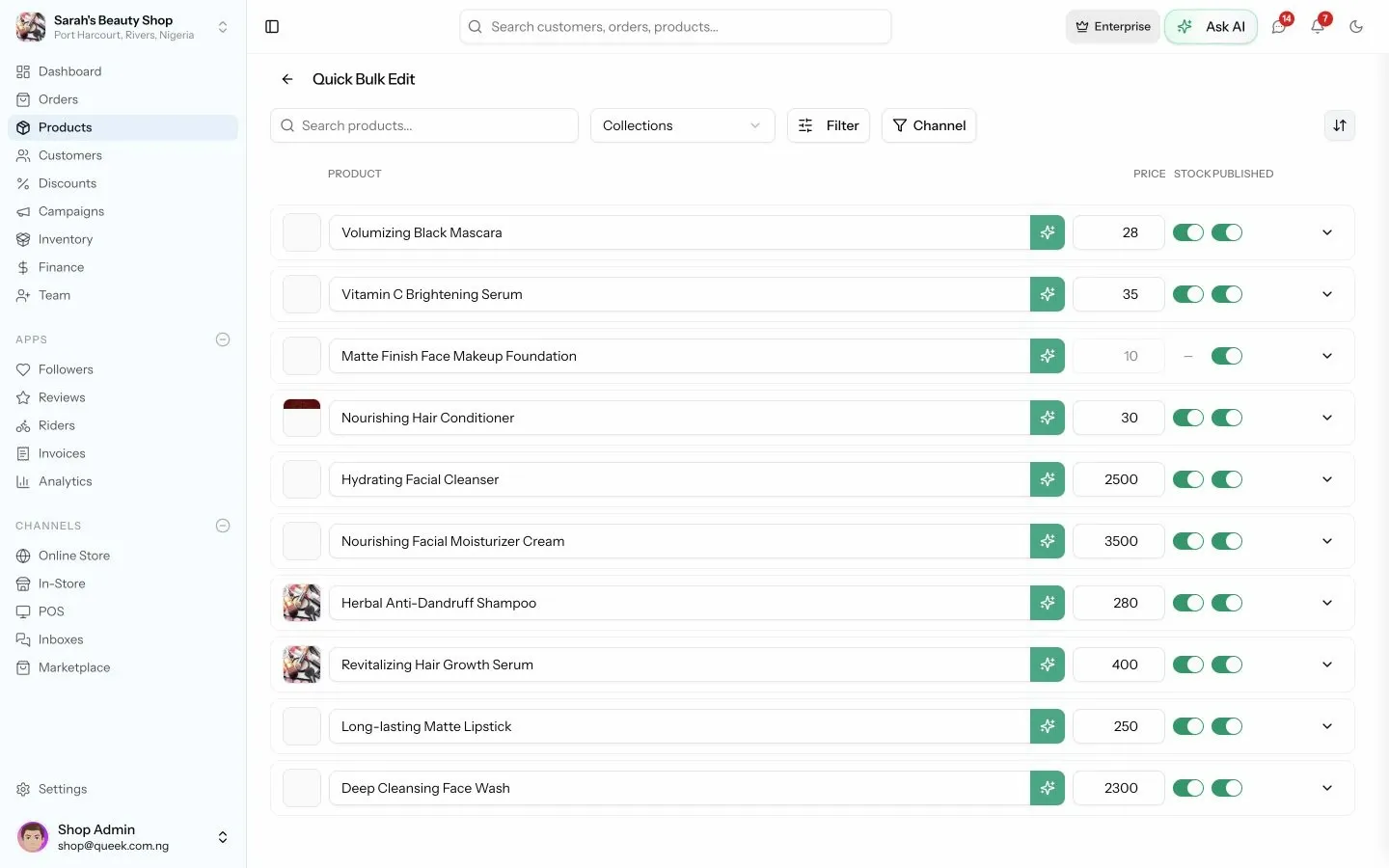
Desktop view: review the selected rows before saving a bulk change.
Check the desktop result
- Only the intended products changed.
- Prices and stock quantities match your source list.
- One product opened from the catalog shows the new value.
Run a bulk update on mobile
- Open Menu → Products.
- Open Actions and choose bulk update, or go to Quick Bulk Edit.
- Search, filter, and select only the products that should change.
- Edit the available Price or Stock values, review every row, and wait for each row to show Saved before leaving.
- Reopen one updated product from the catalog and confirm the detail page matches the bulk-edit result.

Mobile view: keep the selected group small enough to review before saving.
Check the mobile result
- The intended products show the new value.
- No unrelated product changed.
- The catalog still shows the correct availability.