
← All guides
Configure your business profile and store preferences in Queek
Keep the public business details, contact information, and store preferences accurate in one place.
Update business details before sharing your storefront, invoices, or payment instructions.
What you need
- Your registered business name, phone, email, address, and opening hours.
- The logo or description you want customers to see.
Update the profile on desktop
- Open Settings and choose Business Profile.
- In Basic Info, review the business name, slogan, support email, support phone, description, service type, tags, region, landmark, and business address.
- Replace the logo or banner only when the new image meets the size guidance shown by the form.
- Open Operations and update the operating schedule or other preference that changed.
- Press Save changes and wait for the confirmation before leaving Settings.
- Open the storefront or invoice preview and confirm the new business details are shown correctly.
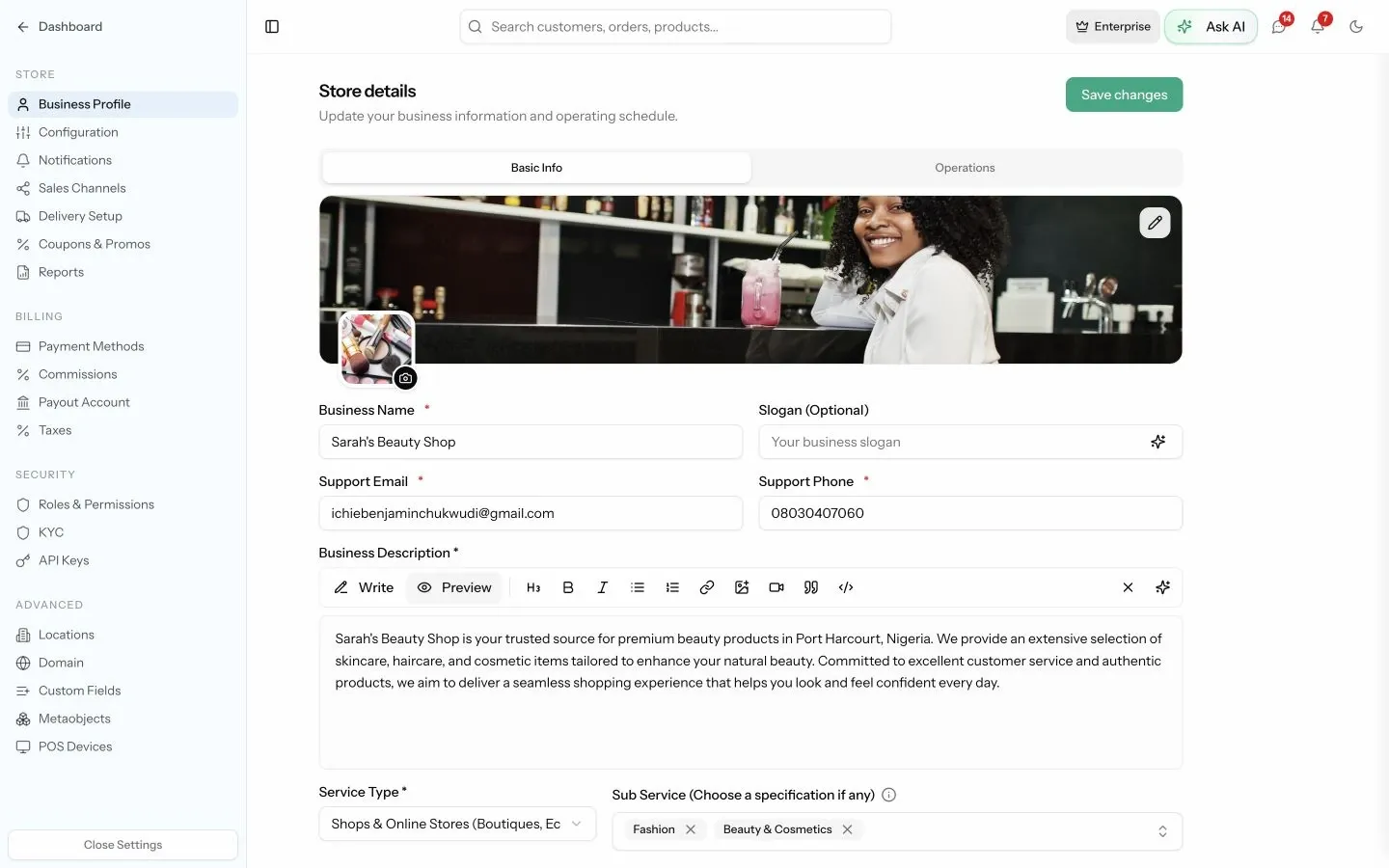
Check the desktop result
- The profile shows the right public business details.
- Contact information is consistent with your customer support channel.
- The storefront preview reflects the saved changes.
Update the profile on mobile
- Tap Menu → Settings → Business Profile.
- Review Basic Info, including the name, support contacts, description, service type, region, landmark, and address.
- Update the logo or banner only when needed, then open Operations for hours and operating preferences.
- Tap Save changes, wait for the confirmation, and check the storefront or invoice preview on the phone.
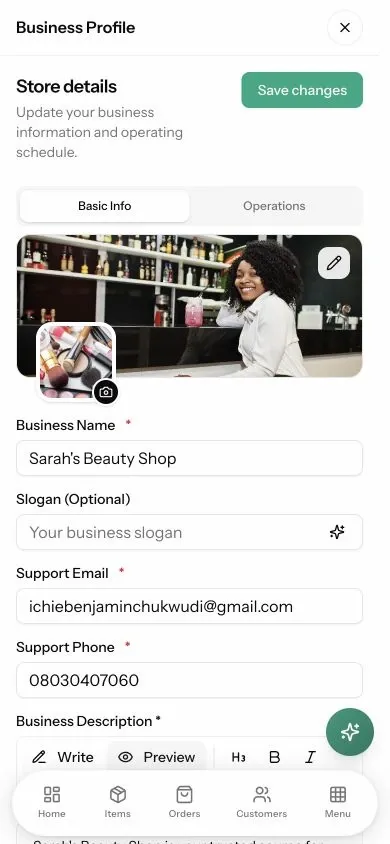
Check the mobile result
- The profile is readable on a phone.
- Customers can see the correct contact details and hours.
- The saved details match the desktop profile.