
← All guides
Choose customer payment methods in Queek
Review the payment methods available to customers, enable the ones you accept, and check the checkout result.
Enable only payment methods you can reconcile and support when an order is placed.
What you need
- Your preferred payment methods.
- Any provider credentials or verification required by the method.
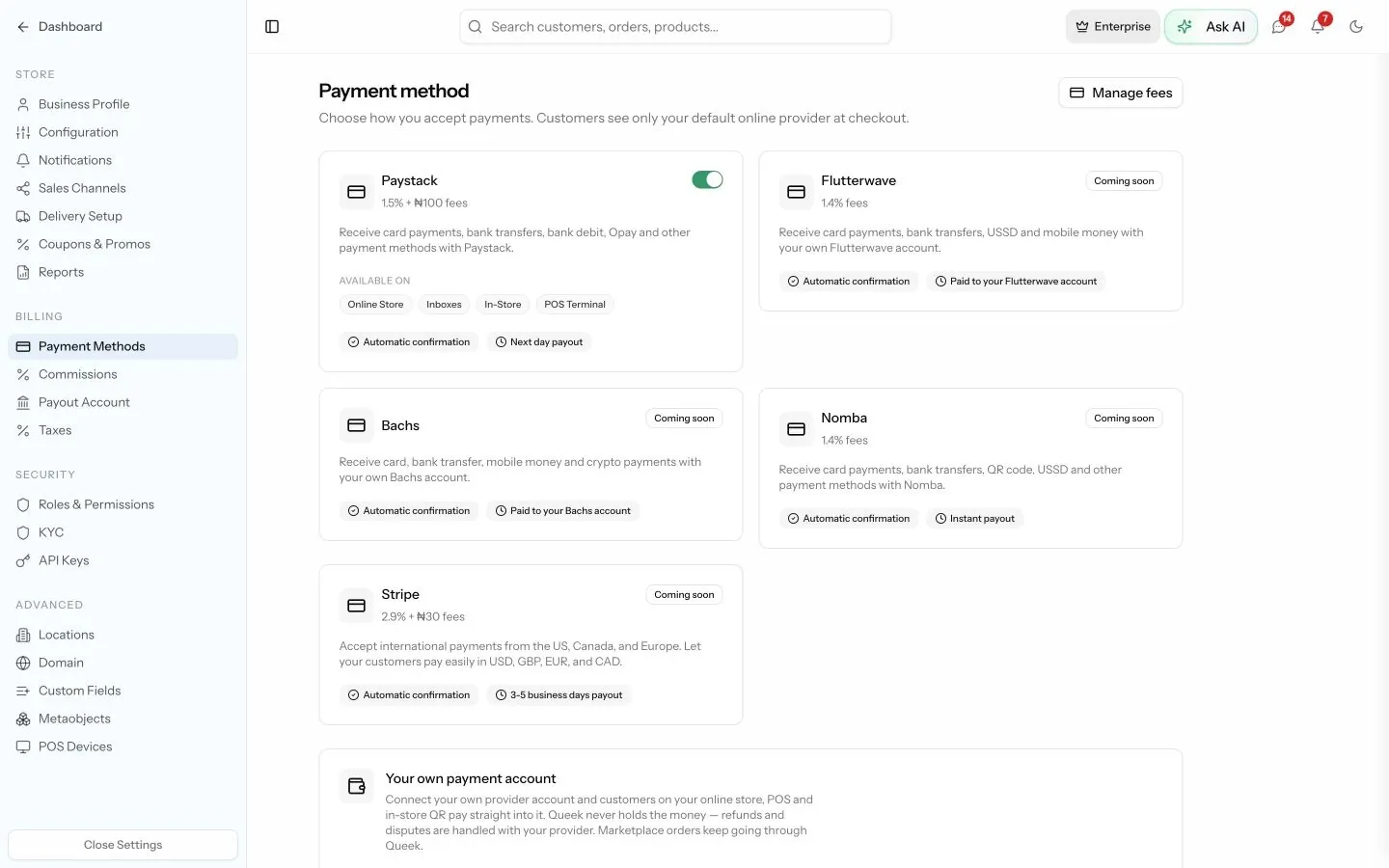
Set payment methods on desktop
- Open Settings and choose Payment Methods.
- Review the active provider and its fee note. Paystack is the live provider in the current dashboard; other providers may show Coming soon.
- Turn on Direct Bank Transfer or Cash only if you can manually confirm those payments. Read the note explaining that they are not automatically confirmed.
- Leave provider methods that are marked Coming soon alone until the dashboard enables their setup.
- Check the Available on labels for the active provider, then preview checkout and confirm the methods customers will see without submitting a live payment.
Check the desktop result
- Checkout shows only methods you accept.
- Enabled methods have completed setup.
- You know how a paid order will appear in Orders or Transactions.
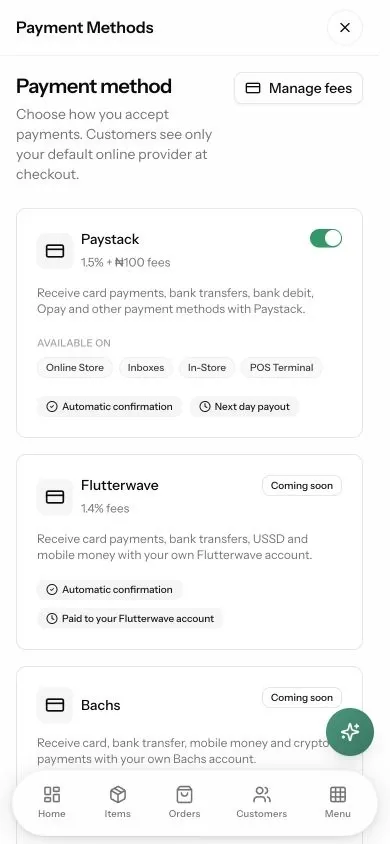
Set payment methods on mobile
- Tap Menu → Settings → Payment Methods.
- Check the active provider, its fee note, and the channels listed under Available on.
- Turn on Direct Bank Transfer or Cash only when you are prepared to confirm those payments manually.
- Do not try to configure methods marked Coming soon.
- Open checkout preview and check the available payment choices without submitting a live payment.
Check the mobile result
- Customers see the right options.
- No method is shown before its setup is complete.
- The checkout list matches your store policy.