
Manage customers and followers in Queek
Find customer records, review followers, and keep customer details useful for future orders.
Use this guide when you need to find a customer, check their history, or understand who follows your store.
What you need
- A merchant login.
- A customer name, phone number, or email if you are looking for one person.
Add a customer on desktop
- Open Customers in the sidebar.
- Press Add Customer. The Add New customer panel opens.
- Enter the required Name and Email. Add the Phone Number, address, Country, State, and Region when you have them.
- Check the spelling and contact details, then press Create customer.
- Search for the new name in the customer list and open the record to confirm it was created.
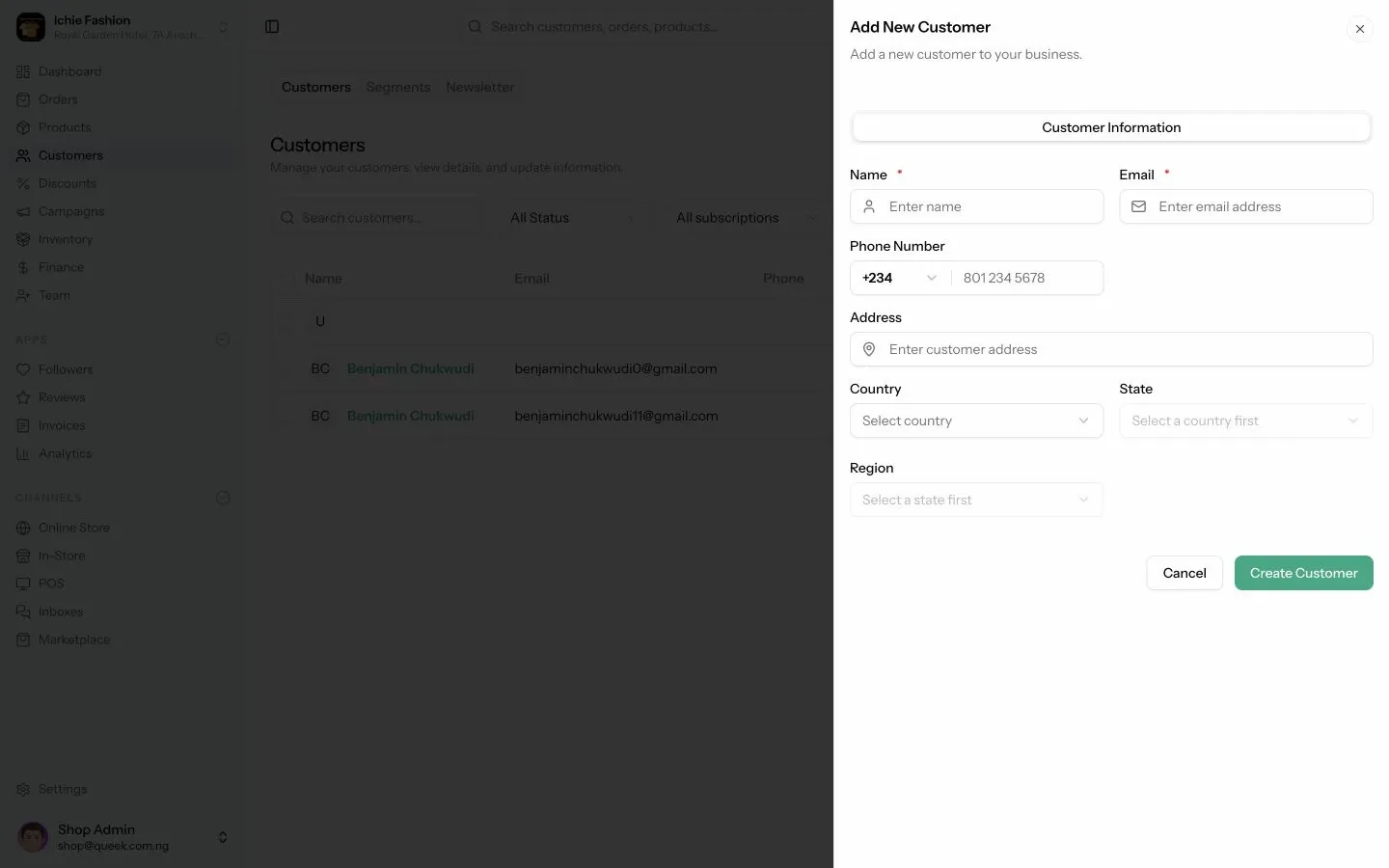
Desktop create form: complete the customer fields before pressing Create Customer.
Find or edit an existing customer
- Search the customer list by name, phone number, or email.
- Open the matching record and review contact details, order history, status, and any available notes before editing.
- Change only the fields that need correction, save the panel, and return to the list to confirm the updated value.
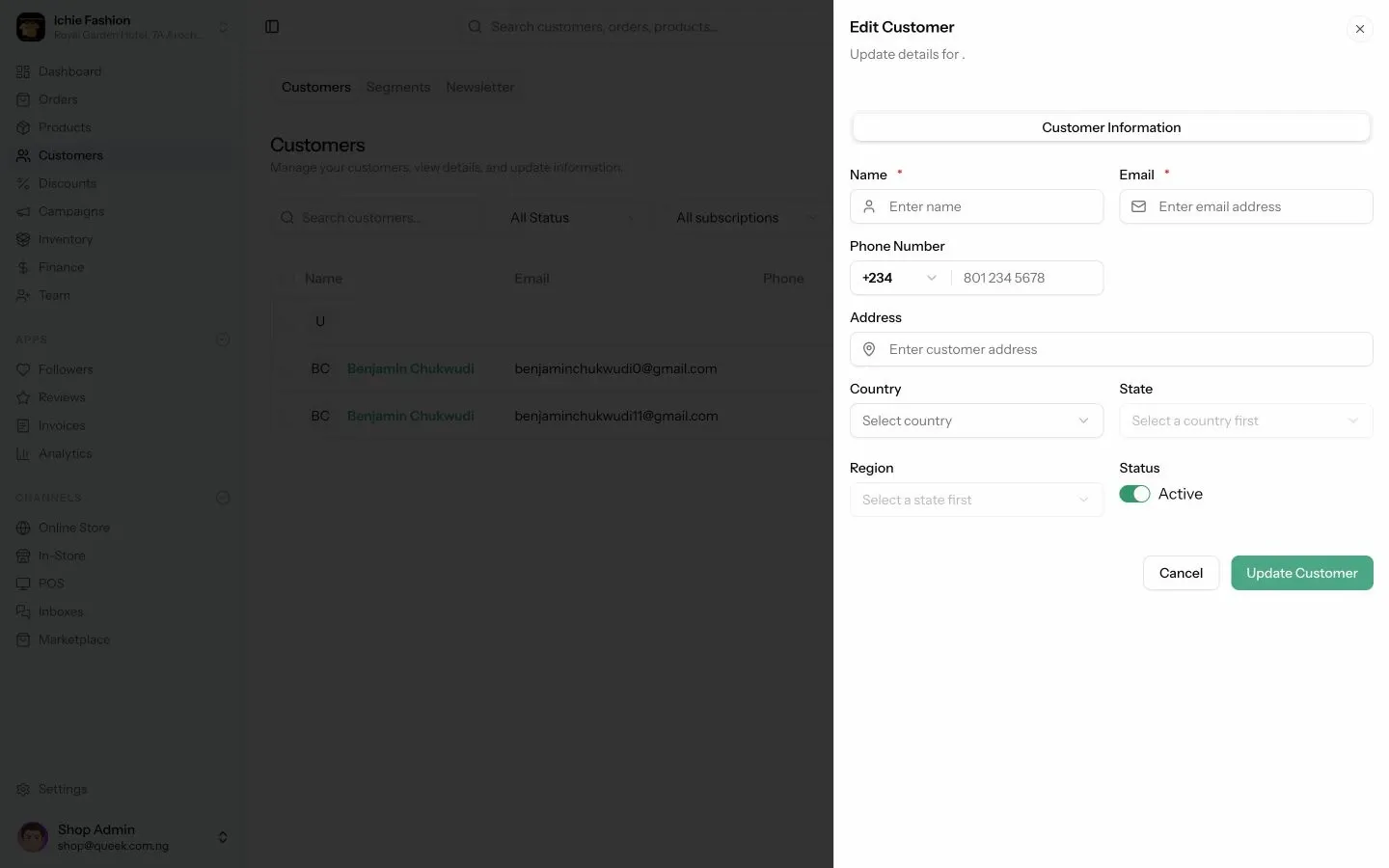
Desktop edit form: update only the incorrect field, then use Update Customer.
Check followers
Open Followers from the Apps section. Search the list when you need to confirm whether a customer follows the store; followers and customers are separate records.
Check the desktop result
- You opened the correct customer record.
- Any changed contact detail is saved.
- You can distinguish a customer record from a follower entry.
Add a customer on mobile
- Tap Menu, then tap Customers.
- Tap Add Customer.
- Enter the required Name and Email, then add the phone number and address details when you have them.
- Select the Country, then select the State and Region if the form enables them.
- Check the details and tap Create customer.
- Search for the new customer and open the record to confirm it appears.
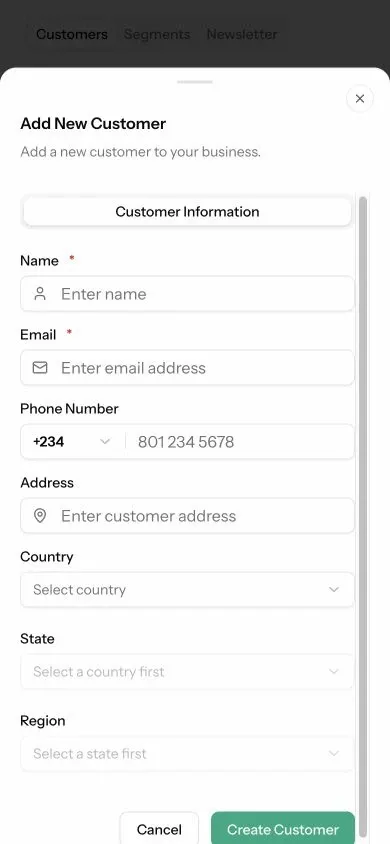
Mobile create form: scroll through the fields, then confirm the customer before creating it.
Find or edit an existing customer
- Search by name, phone number, or email and tap the matching record.
- Review the contact details, status, and order history before editing.
- Save the changed fields, return to the list, and search again to confirm the update.
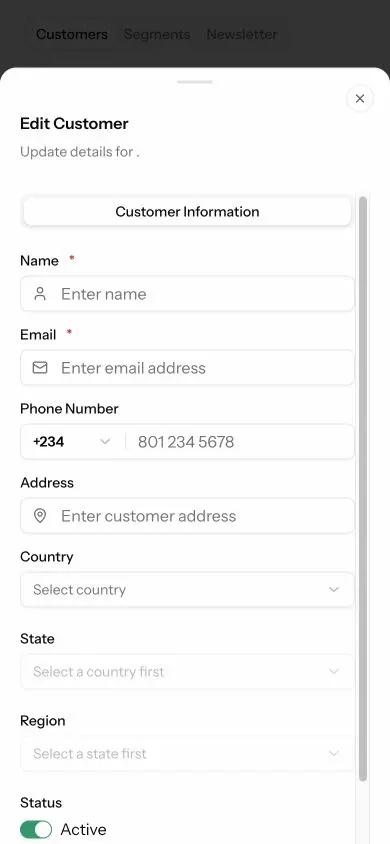
Mobile edit form: verify the loaded record before saving the correction.
Check followers
Open Menu → Followers to search the people following your store. A follower entry is not the same as a customer record.
Check the mobile result
- The customer record is the right one.
- Your change is saved.
- You know where to find the follower list next time.