
Find your way around the Queek Merchant Dashboard
Learn what the dashboard shows after you sign in, where the main tools live, and which shortcut to use when you need to act quickly.
By the end of this guide, you will know where to find the dashboard summary, daily work areas, sales tools, channels, and settings on either device.
What you need
- Your Queek merchant login.
- A store selected in the business switcher.
- A few minutes to follow the flow for the device you are using.
Start on the desktop dashboard
- Open your merchant dashboard and sign in.
- Check the store name and location in the top-left corner. If you manage more than one business, confirm that you are in the right one before making changes.
- Read the main dashboard cards first: revenue, settlements, pending payout, average order value, and completed orders.
- Use Today, Week, or Month to change the period shown in the revenue panel.
The home screen is your daily starting point. It is a quick read of what needs attention, not a replacement for the detailed pages in the sidebar.
Use the desktop sidebar
The left sidebar keeps the main work areas visible. The Main area holds Dashboard, Orders, Products, Customers, Discounts, Campaigns, Inventory, Finance, and Team.
The Apps area contains Followers, Reviews, Riders, Invoices, and Analytics. The Channels area contains Online Store, In-Store, POS, Inboxes, and Marketplace.
Use Settings at the bottom for store-wide configuration, payment methods, delivery, account access, and other preferences.
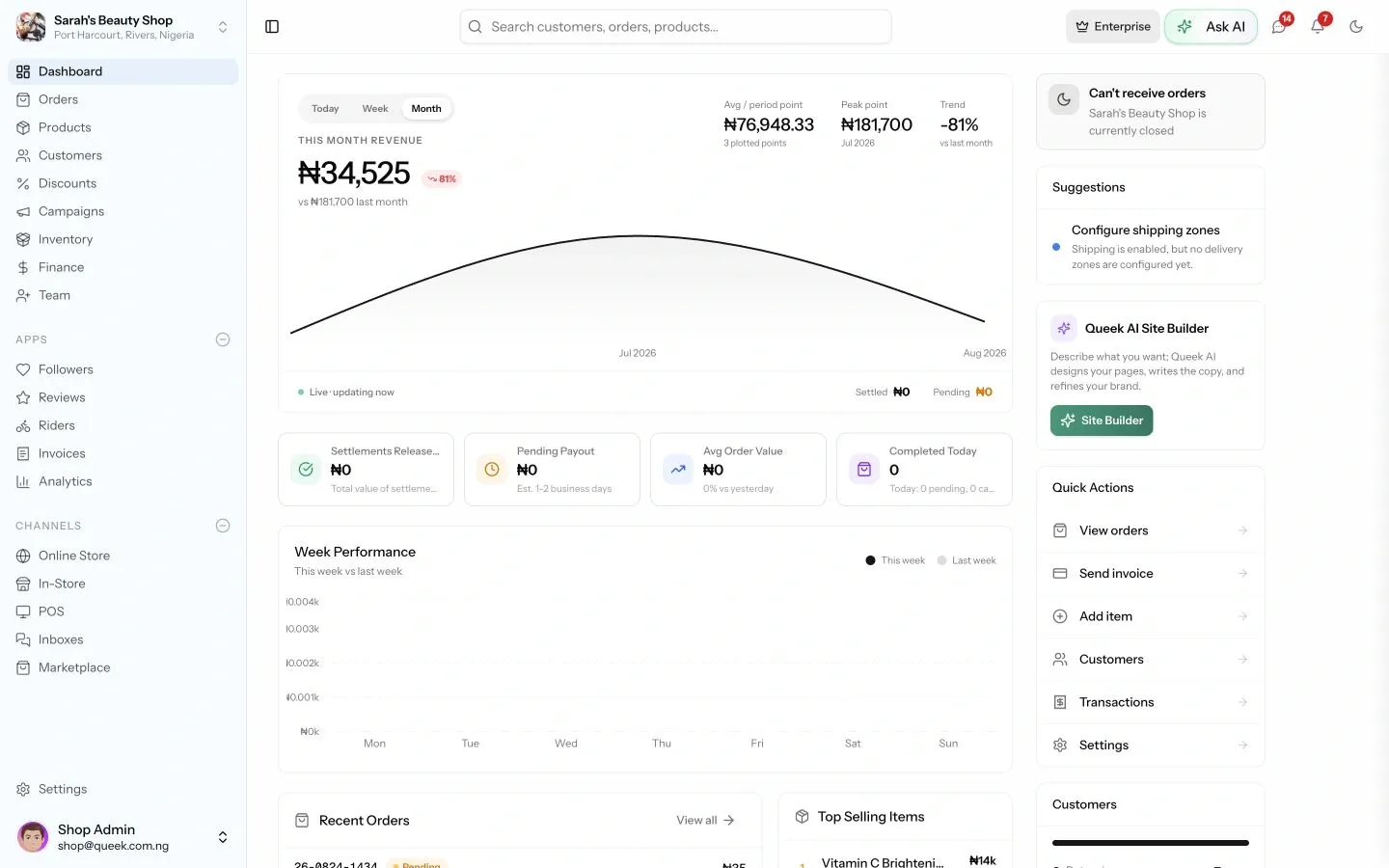
Desktop view: use the sidebar when you already know which part of the store you need.
Move faster on desktop
Use Quick Actions for direct shortcuts to View orders, Send invoice, Add item, Customers, Transactions, and Settings.
Use the search field in the top bar when you remember what you want but not where it lives. Search for a customer, order, or product instead of opening pages one by one.
Check the desktop flow
You are ready to work when you can:
- Find Orders, Products, and Inventory without using search.
- Find Analytics, Finance, and Settings from the sidebar.
- Switch from a summary card to the detailed page when follow-up is needed.
Start on the mobile dashboard
- Open your merchant dashboard on your phone and sign in.
- Check the store name and location at the top. If you manage more than one business, confirm that you are in the right one before making changes.
- Read the dashboard summary first: revenue, settlements, pending payout, average order value, and completed orders.
- Use Today, Week, or Month to change the period shown in the revenue panel.
The mobile home screen is your daily starting point. Scroll through the summary before opening a detailed tool.
Use the mobile bottom navigation
The bottom navigation keeps the most-used destinations close: Home, Items, Orders, Customers, and Menu.
- Tap Home to return to the dashboard summary.
- Tap Items to work on your catalog.
- Tap Orders to process customer purchases.
- Tap Customers to view customer records.
- Tap Menu for less frequent tools such as Finance, Inventory, Inboxes, Online Store, POS, and Settings.
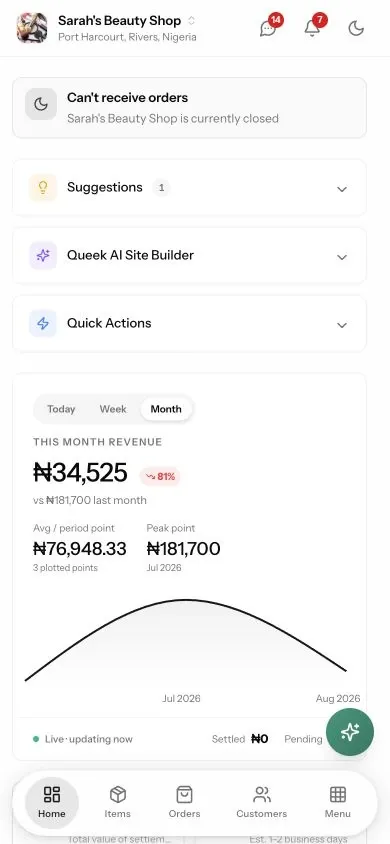
Mobile view: use the bottom navigation for daily work and open Menu for the rest.
Move faster on mobile
Use the Quick Actions panel when it is visible on the dashboard. It gives you direct shortcuts to View orders, Send invoice, Add item, Customers, Transactions, and Settings.
If you cannot see the tool you need, open Menu and choose the destination there instead of guessing which card to tap.
Check the mobile flow
You are ready to work when you can:
- Find Items, Orders, and Customers from the bottom navigation.
- Find Analytics, Finance, and Settings from Menu.
- Return to Home and recognise when a summary card needs follow-up.