
← All guides
Create discounts and coupon codes in Queek
Set up a discount, define where it applies, and confirm the code before sharing it with customers.
Create one offer at a time and test its rules before publishing the code.
What you need
- The offer type and value.
- The products, collections, or channels where it should apply.
- Start and end dates, if the offer is time-limited.
Create a discount on desktop
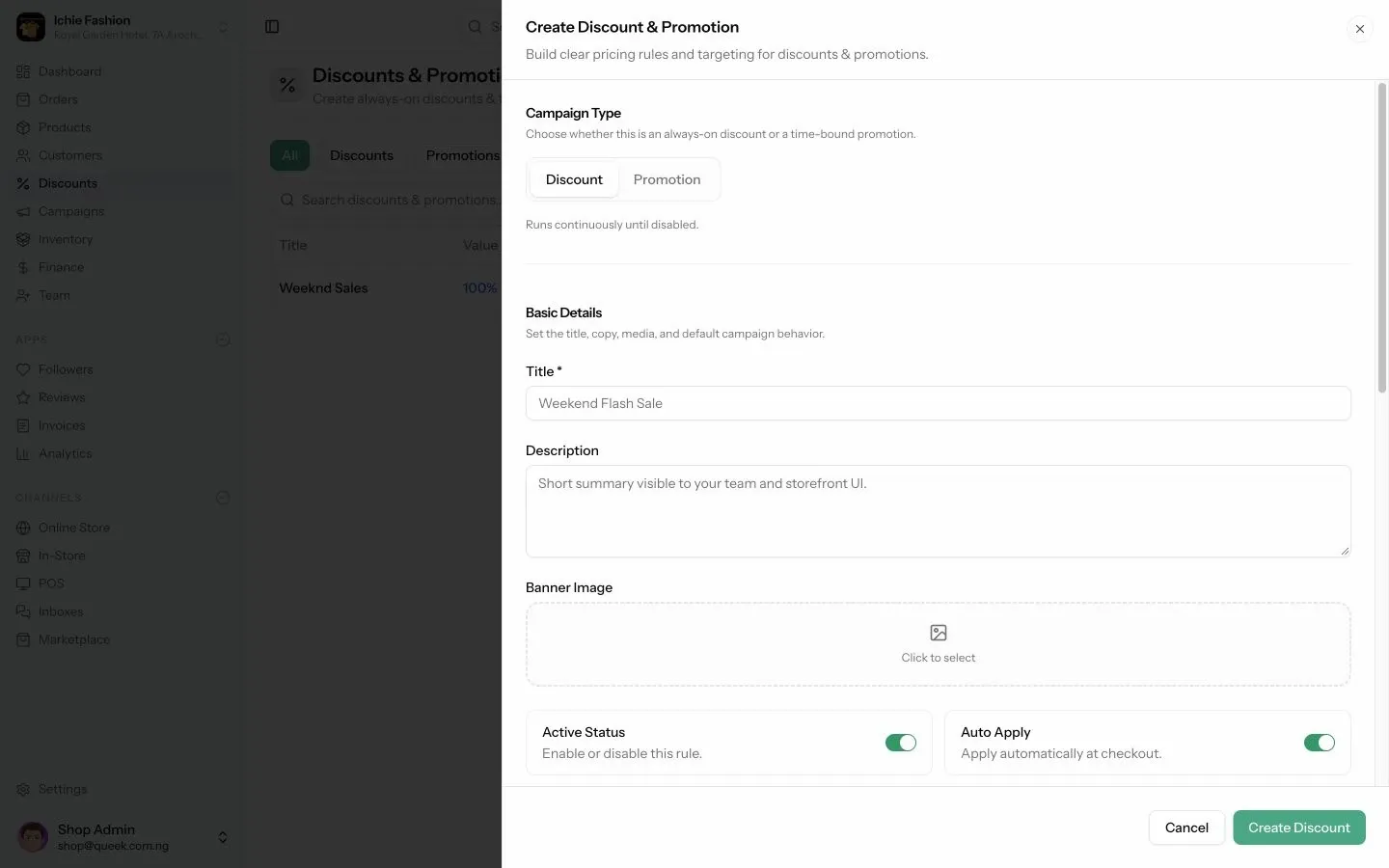
- Open Discounts in the sidebar and press Create Discount & Promotion.
- Choose Discount for an always-on rule or Promotion for a time-bound campaign.
- Enter the required Title, optional Description, and choose whether Active Status and Auto Apply should be on.
- In Pricing Logic, choose Discount Type, enter the Value, set Priority, and keep Conflict Mode aligned with the other rules in your store.
- Set Min Final Price if the sale must never reduce an item below a floor.
- In Applicability, choose Applies To and select the products or catalog scope covered by the rule.
- Add any Min. Order Amount, Min. Quantity, maximum discount, or usage limits that protect the offer.
- Press Create Discount, then open the new row and confirm its status, value, scope, and limits.
Create a customer-entered coupon
- Open Coupons & Vouchers and press Create Coupon.
- Enter a unique Coupon Code, Title, and optional description. Use Generate when you want Queek to create the code.
- Choose the Discount Type and enter its value, then set the minimum order amount and Applies To scope.
- Set the total usage limit, usage limit per customer, start date, and expiry date. Leave the dates empty only when the coupon should start immediately or never expire.
- Keep Active Status on only when the coupon is ready for customers, then press Create Coupon.
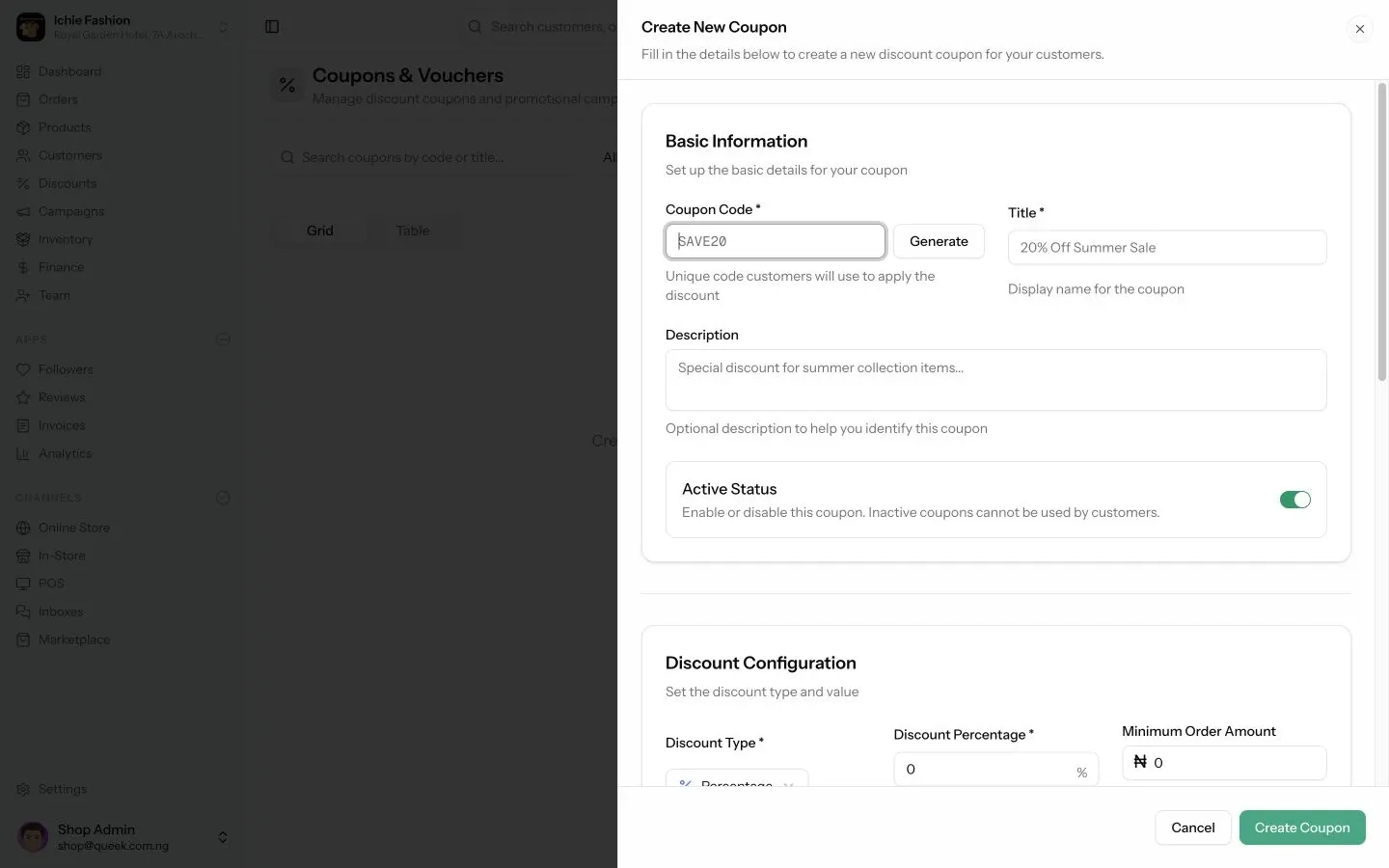
Desktop coupon form: configure the code, discount rules, product scope, usage limits, and validity before creating it.
Check the desktop result
- The discount is active only where intended.
- The discount row shows the correct value, type, scope, and status.
- The coupon code is copied exactly as customers will enter it.
- Expiry, usage, and minimum-order rules are visible and correct.
Create a discount on mobile
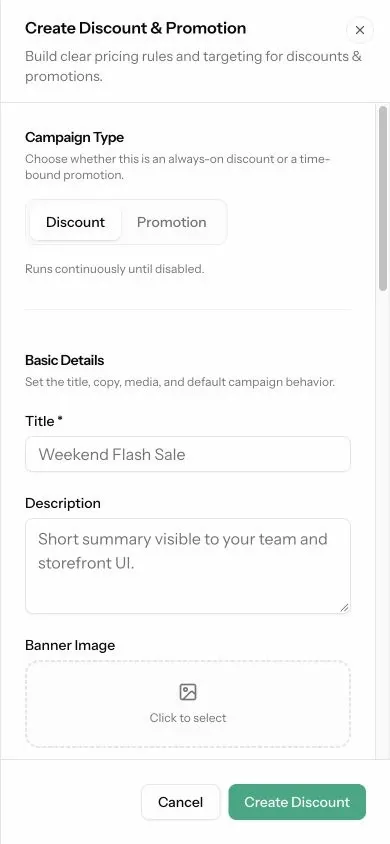
- Tap Menu, then tap Discounts and tap Create Discount & Promotion.
- Choose Discount or Promotion.
- Enter the Title, optional description, and the Active Status and Auto Apply choices.
- Choose the Discount Type, enter the Value, and set the priority and conflict mode.
- Choose Applies To, select the catalog scope, and add minimum-order, quantity, maximum-value, and usage limits as needed.
- Tap Create Discount, then reopen the row and check its status and rules.
Create a customer-entered coupon
- Open Menu → Coupons & Vouchers or open Coupons directly and tap Create Coupon.
- Enter or generate the Coupon Code, add the title, choose the discount type and value, and set the product scope.
- Set the minimum order, total usage, per-customer usage, start date, and expiry date.
- Leave Active Status on only when the code is ready, then tap Create Coupon.
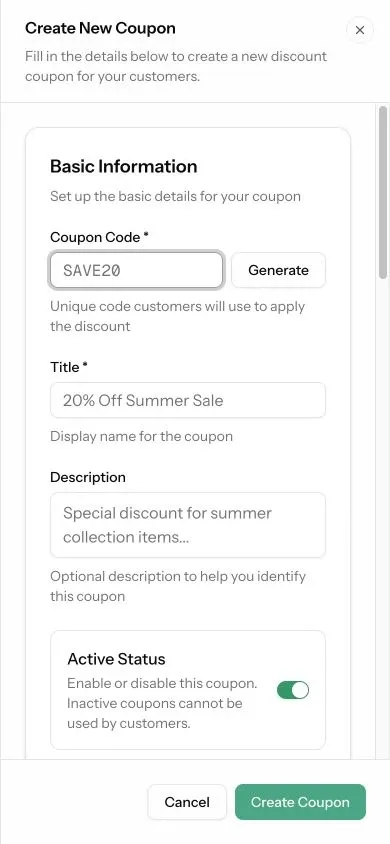
Mobile coupon form: scroll through the same fields, then create the code only when its rules are ready.
Check the mobile result
- The offer appears in the discount list.
- The discount and coupon code match the promotion you planned.
- You have not accidentally left the discount open-ended.