
← All guides
Set up in-store and table QR ordering in Queek
Enable in-store ordering, create table sections, and verify the QR experience before placing it in your venue.
Prepare the channel first, then create the table structure customers will use.
What you need
- Products enabled for In-Store.
- Your table names or numbers and the sections they belong to.
Set up in-store ordering on desktop
- Open Channels → In-Store. If the feature is disabled, press Enable In-Store and wait for the confirmation.
- In the enabled view, confirm the status reads In-Store is active and copy or open the generated store QR from the QR Code card. Use Download QR when you are ready to print it.
- Open Channel Settings and decide whether In-Store Barcode Scanner should be enabled.
- For restaurant table routing, open Table Sections separately. Create a section such as Indoor or Patio, save it, then add each table to the correct section.
- Open a table QR or preview, scan it with a phone, and place a test order without completing a live payment.
- Open Orders and confirm the test order is labelled as an in-store order and, for a table QR, carries the correct table reference.
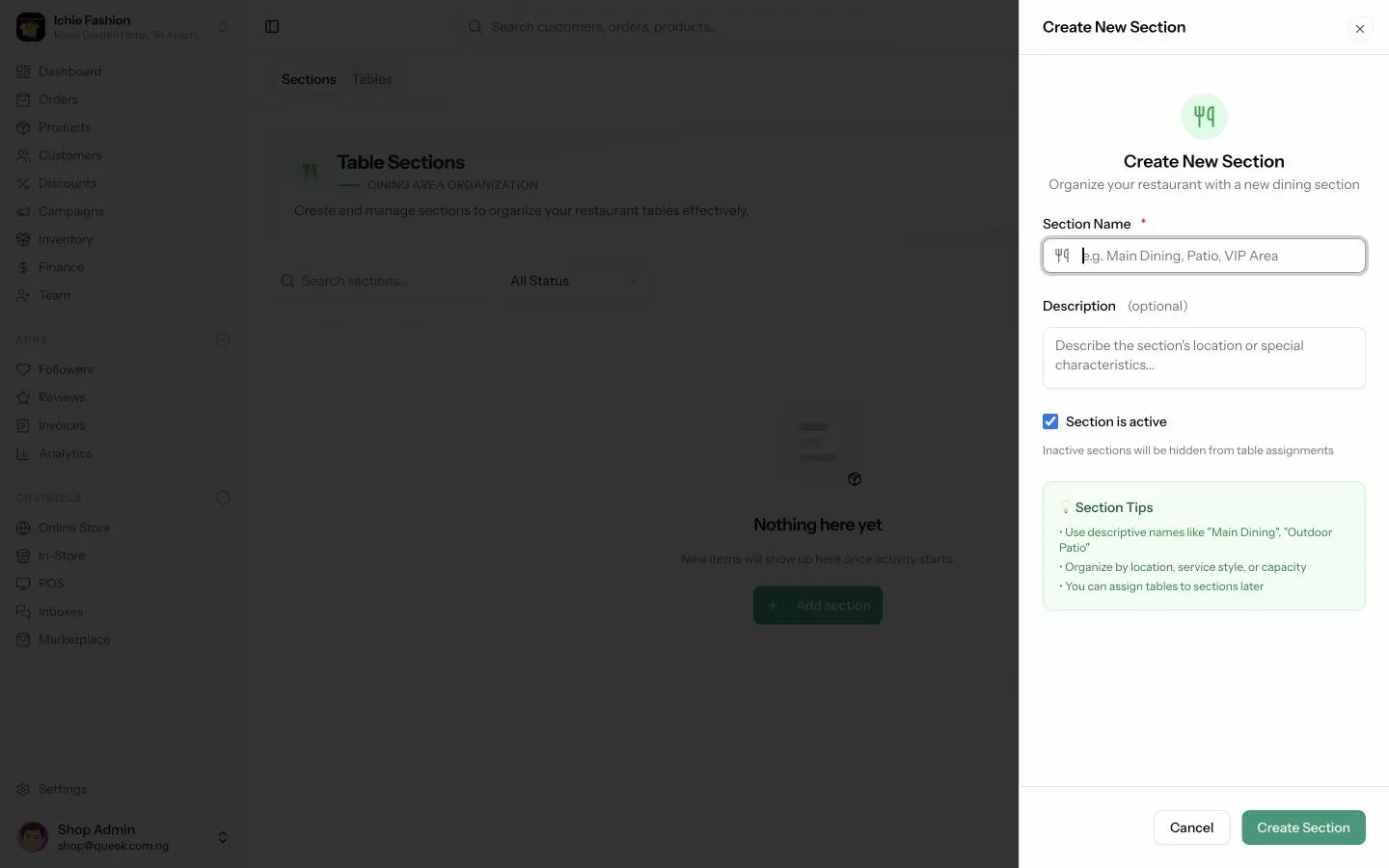
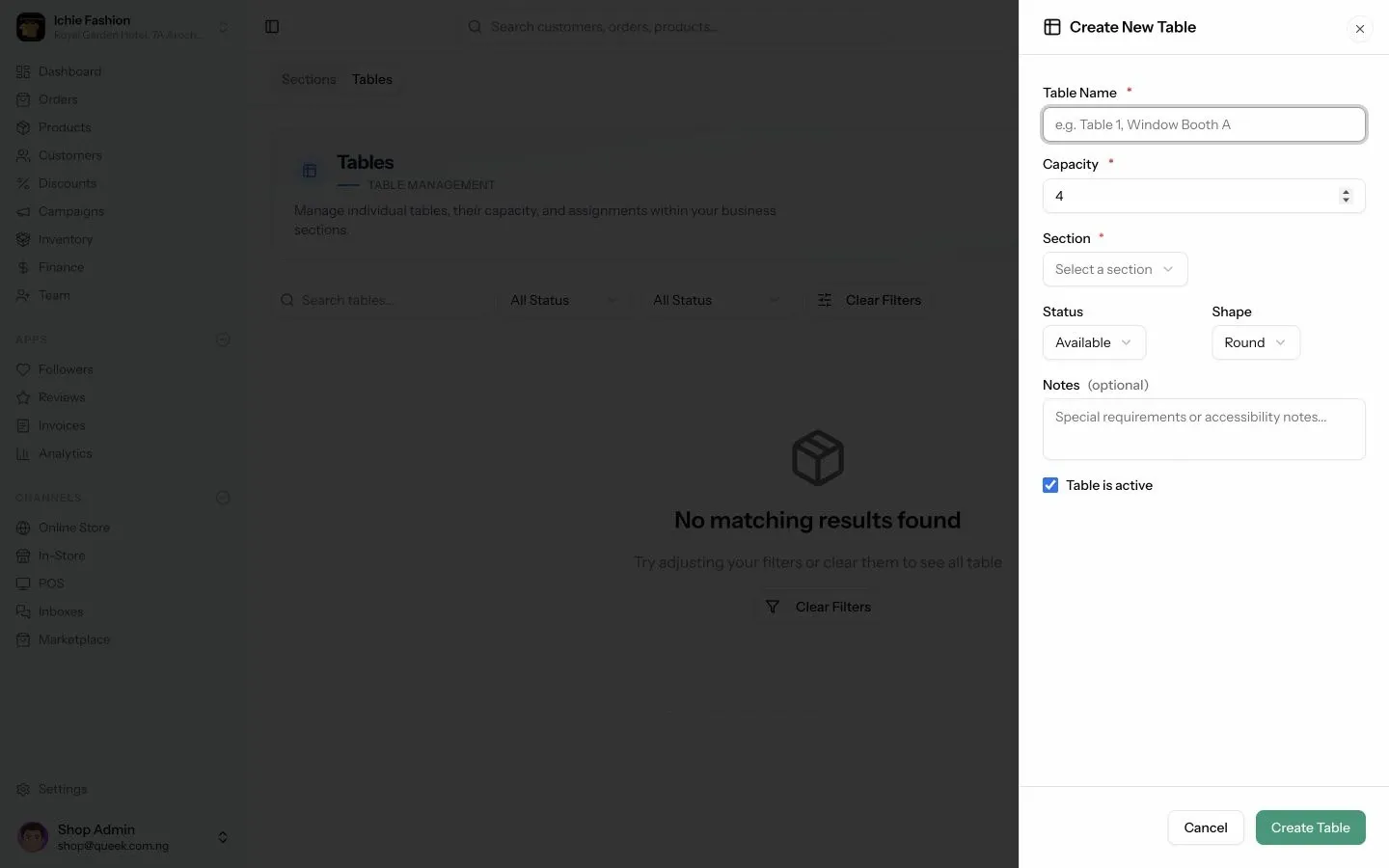
Desktop table form: assign the table to a section before saving its name, capacity, and status.
Check the desktop result
- In-store ordering is enabled.
- Every table is in the correct section.
- The QR opens the right table ordering page.
Set up in-store ordering on mobile
- Tap Menu → In-Store. If it is disabled, tap Enable In-Store and wait for the active confirmation.
- Check the QR Code card, tap Download QR when you need a printable copy, and use the store link to preview the customer experience.
- Open Channel Settings and turn In-Store Barcode Scanner on only if customers should scan product barcodes.
- Open Menu → Table Sections for restaurant table routing, create and save each section, then add the tables to it.
- Scan a table or store QR with the phone camera and place a test order.
- Return to Orders and check that the order shows the in-store channel and correct table when applicable.
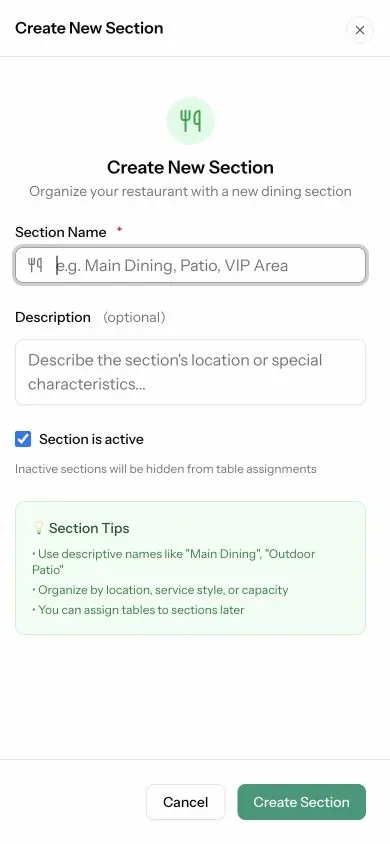
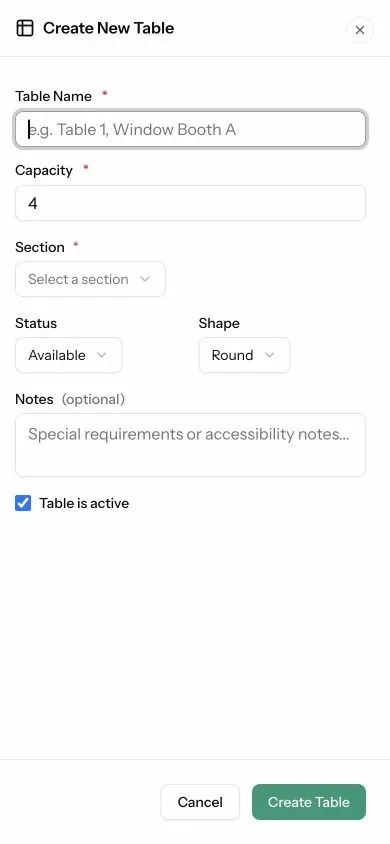
Mobile table form: add each table to the correct section before testing its QR experience.
Check the mobile result
- The channel is on.
- Tables are organised correctly.
- A customer scanning a QR reaches the intended table.