
← All guides
Organise products with categories, variants, and visibility
Keep a Queek catalog easy to browse by grouping products, adding variants, and controlling what customers can see.
Good organisation helps customers find the right item and helps you manage stock without duplicate listings.
Before you start
- Decide the groups customers will understand.
- Prepare variant names such as size, colour, flavour, or duration.
- Use clear images that match the product.
Organise the catalog on desktop
- Open Products and choose the Collections tab when you need to create or arrange a collection.
- Press Add or the collection creation action, enter the collection name and any requested description or image, then save it.
- Return to the product list, open a product, and assign it to the correct collection from the product form.
- Add Attributes such as Size or Color only when the options share one product identity. Review every generated variant row and give each variant its own price, stock, and image when the form supports it.
- Check the product image and description, set Available and its publication state correctly, then save the product.
- Open the customer-facing channel and confirm the collection, product, and variant choices appear in the intended order.
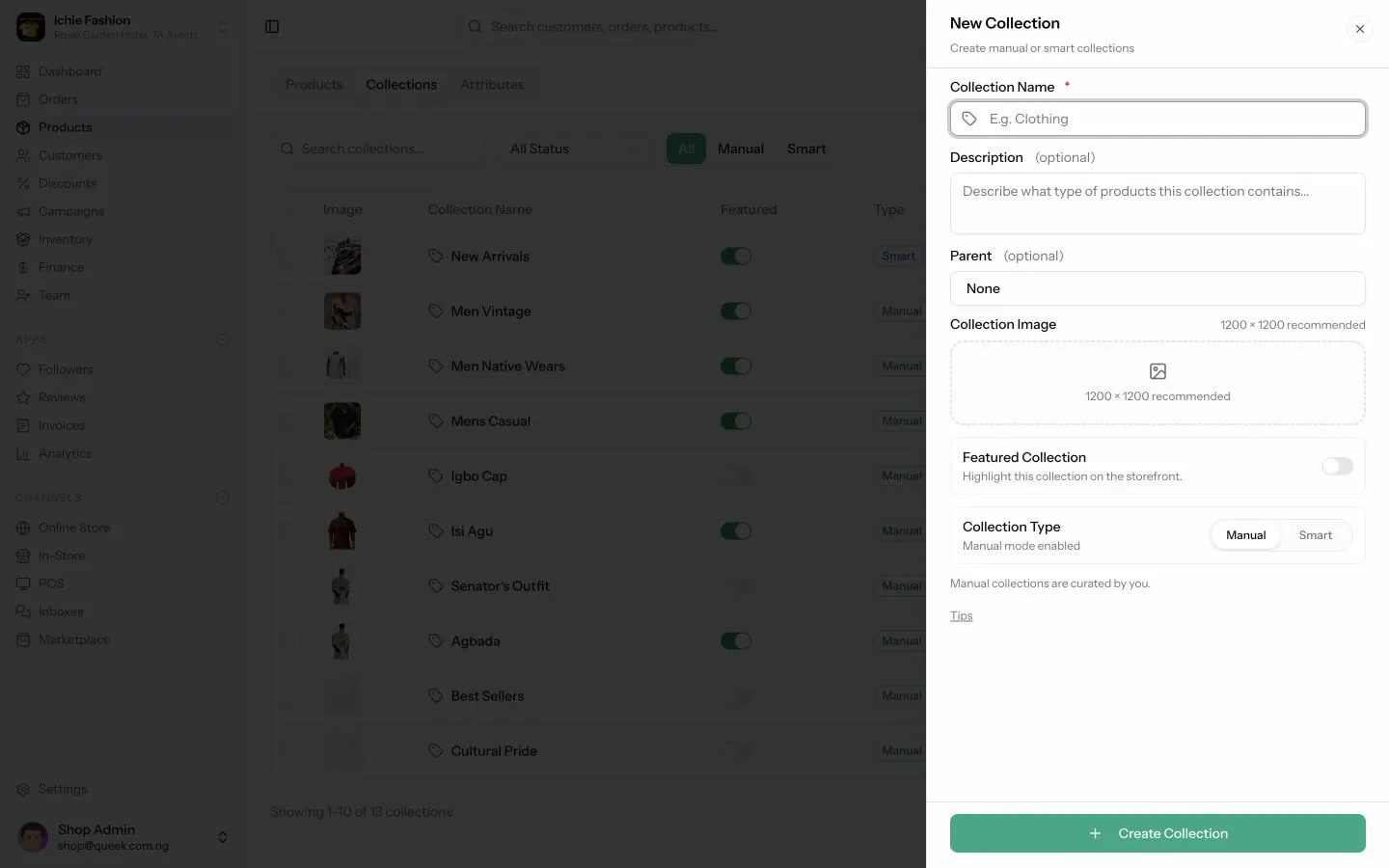
Desktop collection form: name the collection before assigning products to it.
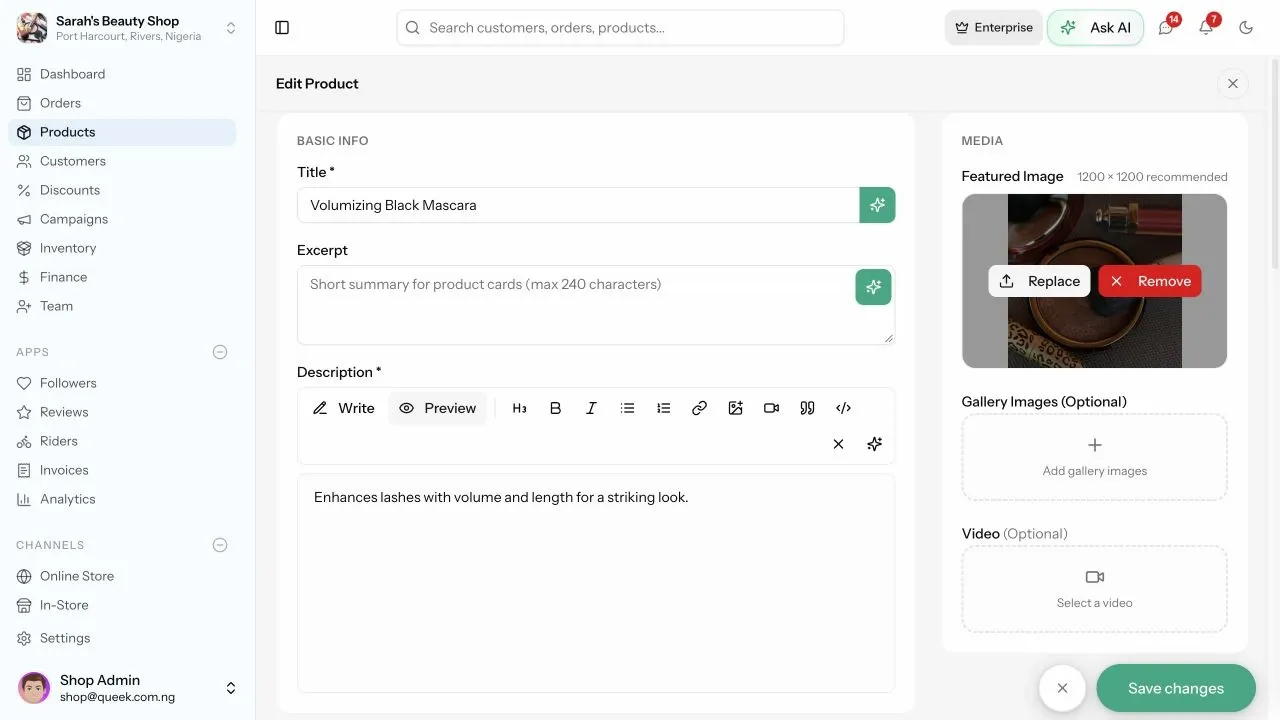
Desktop view: organise the product before publishing it to a customer-facing channel.
Check the desktop result
- The product appears in the correct collection.
- Each variant is understandable and has the right availability.
- Draft products are hidden and published products are visible.
Organise the catalog on mobile
- Open Menu → Products and open Collections when you need to create a collection.
- Tap Add, enter the collection details, and save it.
- Open the product, assign its collection, and add attributes such as size or colour only when they belong to the same product.
- Review each generated variant’s price, stock, and image, then check Available and its publication state.
- Tap Save and check the product and collection from the customer-facing channel.
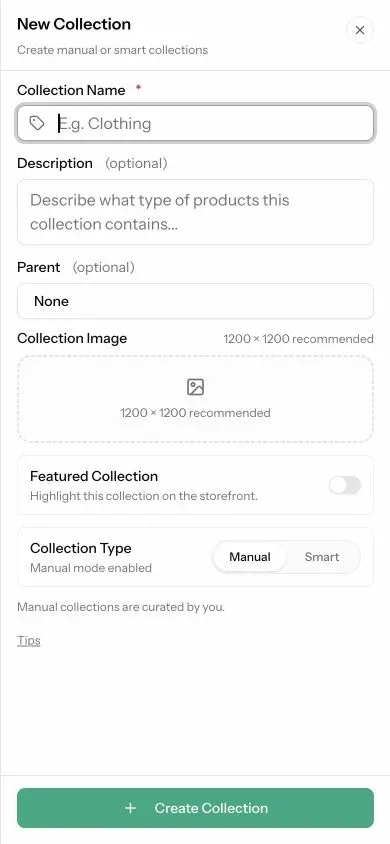
Mobile collection form: save the collection, then return to the product form.
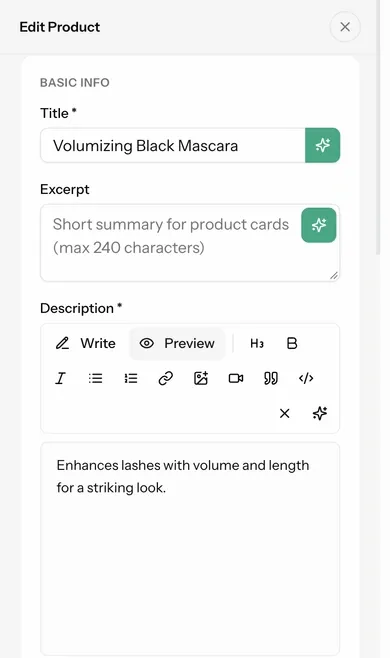
Mobile view: keep variants short and readable on a phone screen.
Check the mobile result
- Customers can find the product in the intended group.
- Variants do not look like separate unrelated products.
- Visibility matches your launch plan.