
← All guides
Track payouts and transactions in Queek
Filter your transactions, inspect a payout, and reconcile the result with the order that created it.
Use the date and status filters before drawing conclusions from a transaction list.
What you need
- The order number, customer, or date you are checking.
- The period you want to reconcile.
Review transactions on desktop
- Open Finance in the sidebar.
- Choose the transaction or settlement view shown for your account, then set the date range and status filter before reading totals.
- Search by order number, customer, or reference when you need one transaction.
- Open the transaction and compare gross amount, fees, commission, net amount, payment method, payout status, and order reference.
- Check the payout account and settlement status separately from the order status; a completed order is not automatically the same as a completed payout.
- Export or record the filtered result only after confirming the date range and filters.
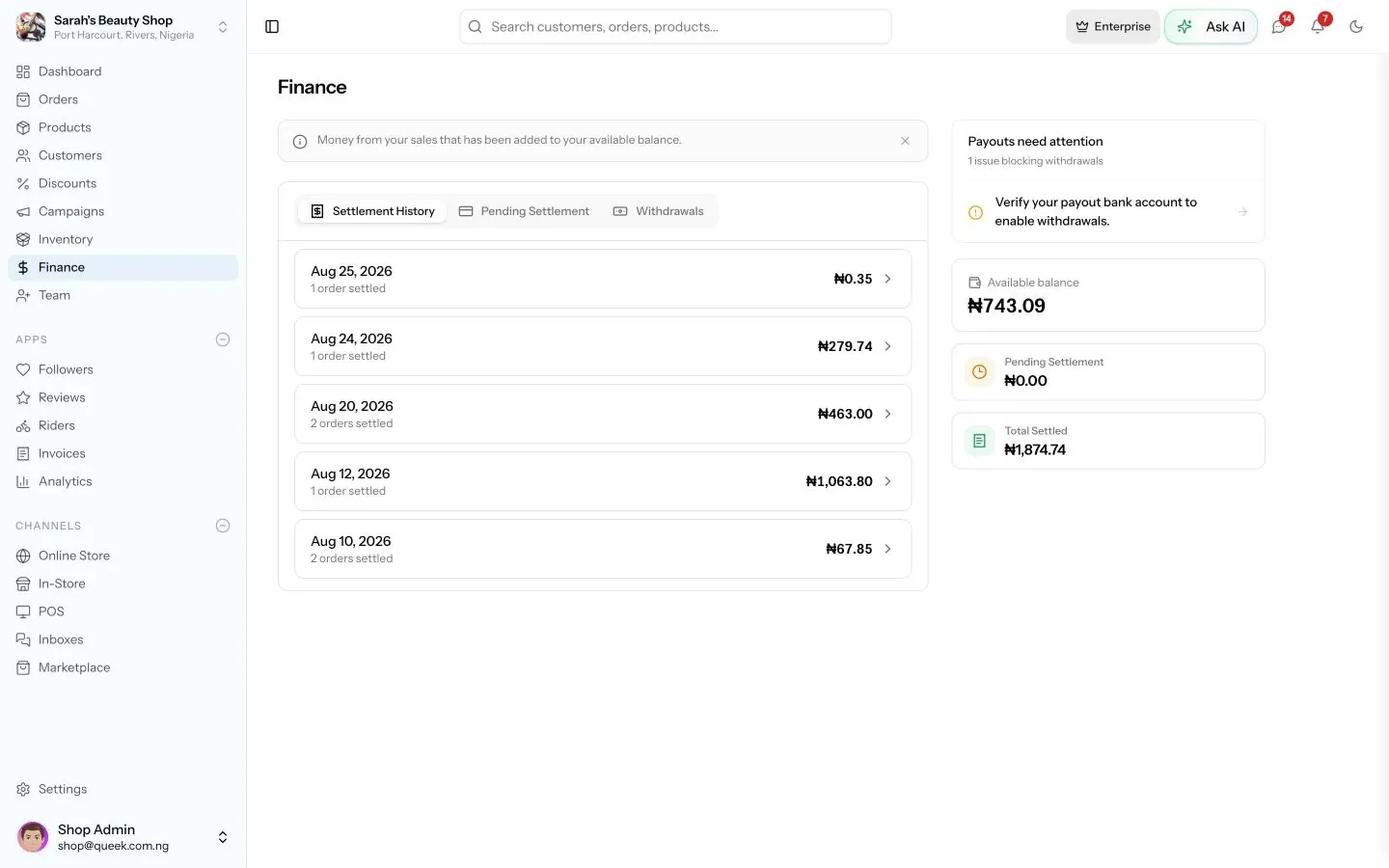
Check the desktop result
- You can identify the payout or transaction status.
- The amount ties back to the correct order.
- Fees and net amount are recorded separately.
Review transactions on mobile
- Tap Menu → Finance and open the transaction or settlement view available to the account.
- Set the date and status filters before reading the totals.
- Search by order number, customer, or reference, then tap the transaction.
- Compare gross amount, fees, commission, net amount, payment method, payout status, and order reference.
- Export or record the result only after checking the filters.
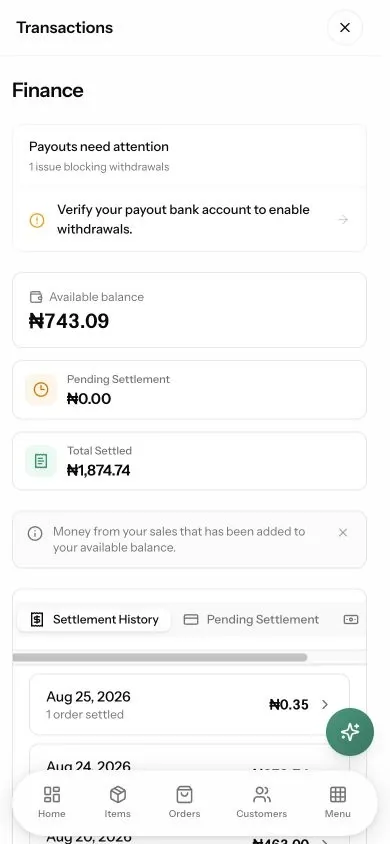
Check the mobile result
- The transaction belongs to the intended order.
- The status is clear.
- Your reconciliation uses the filtered period, not the full list.