
← All guides
Manage your Queek subscription and plan
Review your current plan, compare available plans, and confirm the billing state before changing anything.
Read the feature and billing summary before choosing a plan so the change matches how you sell.
What you need
- The plan features your store needs.
- The person authorised to approve a billing change.
Review your plan on desktop
- Open the plan link near the top of the dashboard or open Settings → Subscription.
- Read the current plan, billing status, renewal date, included features, and remaining AI or channel limits.
- Compare the available plans and note which plan unlocks the feature you need, such as rider dispatch, roles, or POS tools.
- Select a plan only after checking the billing period, price, proration, and feature summary.
- Review the final billing confirmation and complete the change only when you are authorised to make the subscription change.
- Return to Subscription and confirm the plan, billing status, and feature access have updated.
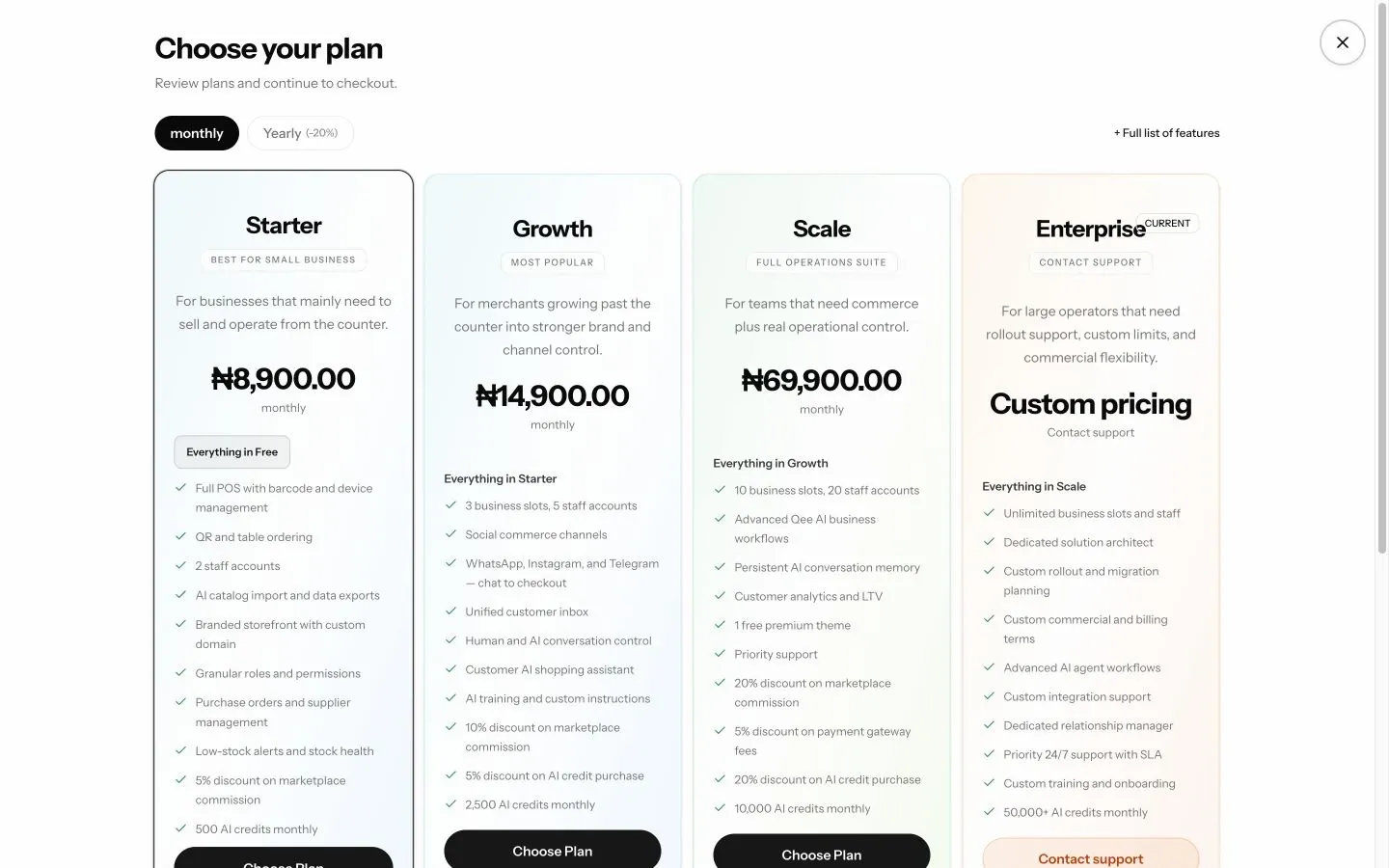
Check the desktop result
- The current plan and renewal state are clear.
- The selected plan includes the features you need.
- The account shows the intended plan after the change.
Review your plan on mobile
- Tap the plan link near the top of the dashboard or open Menu → Settings → Subscription.
- Read the current plan, billing status, renewal date, features, and remaining usage limits.
- Compare plans and identify which one unlocks the required feature.
- Check the billing period, price, proration, and feature summary before selecting a plan.
- Complete the authorised billing confirmation, then return to Subscription and confirm the new status.
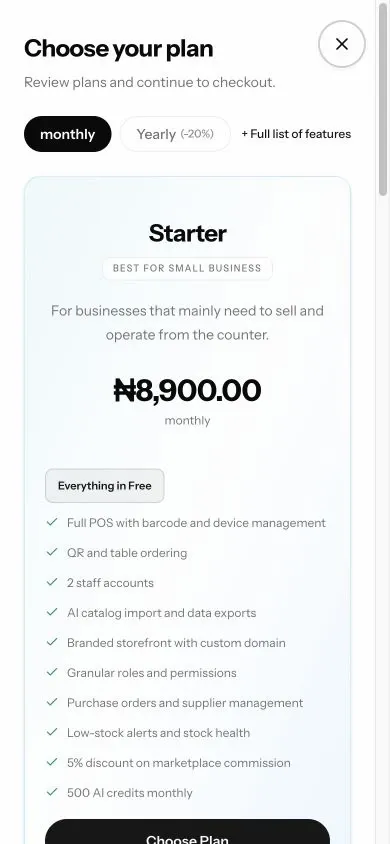
Check the mobile result
- The plan status is visible.
- The feature limits match your needs.
- The account is on the intended plan.