
← All guides
Configure taxes and commissions in Queek
Review the tax and commission settings that affect orders, then confirm the values before selling.
Ask your accountant or finance lead when you are unsure which rate or commission rule applies.
What you need
- The approved tax rates for your business.
- The commission rules for your Queek plan or sales channels.
Configure finance rules on desktop
- Open Settings and choose Taxes.
- Review the tax list, then press Add Tax to create a rule or open an existing tax row to edit it.
- Enter the Tax Name, Tax Rate (%), channel scope, and active status requested by the form, then press Create or Update.
- Open Commissions separately. Treat the displayed Commission Rate, Settlement, and Service Fee as the current plan rules; do not describe them as editable tax fields.
- Check an order or checkout preview and confirm the tax, commission, and net total match the rules before accepting a live order.
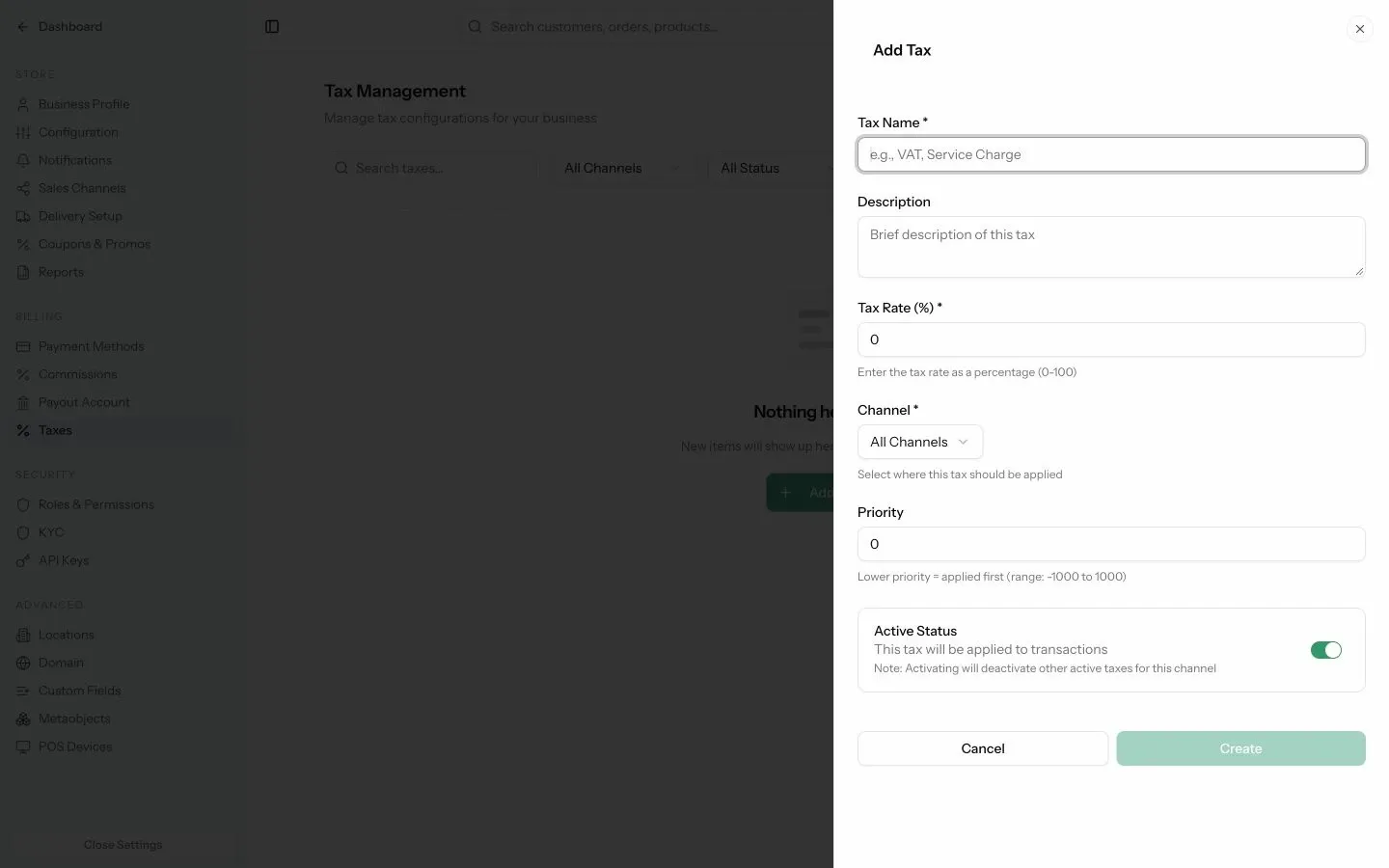
Check the desktop result
- The correct region and rates are saved.
- You understand whether prices include tax.
- The order total matches the saved rules.
Configure finance rules on mobile
- Tap Menu → Settings → Taxes and review the existing tax rows.
- Tap Add Tax, enter the tax name, rate, channel scope, and status, then tap Create or Update.
- Open Commissions to read the plan’s commission rate, settlement timing, and service fee.
- Check an order or checkout preview and confirm the calculation before accepting a live order.
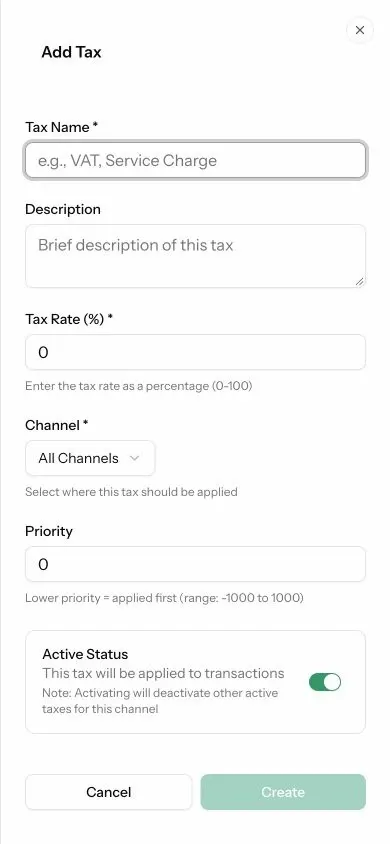
Check the mobile result
- The rates are saved and readable.
- The tax-included choice is intentional.
- The checkout calculation is correct before you sell.