
← All guides
Add team members and manage roles in Queek
Invite a teammate with the right access, then confirm their invitation and role.
Give each teammate only the access they need for their work.
What you need
- The teammate’s email address.
- The role or permissions they need.
Add a teammate on desktop
- Open Team in the sidebar and press Add Member.
- In Member Information, enter the required Name and Email. Add the phone number with the correct country code when the teammate needs phone contact.
- Select one or more roles: Admin, Manager, Owner, Sales, or Staff. Start with the least-permissive role that covers the person’s work.
- Open the Permissions tab and review the individual capabilities before creating the member.
- Press Create team member. If the account or plan disables the action, resolve the permission or plan requirement first; do not keep retrying a disabled button.
- Search the team list for the new member and confirm the role and active or pending status.
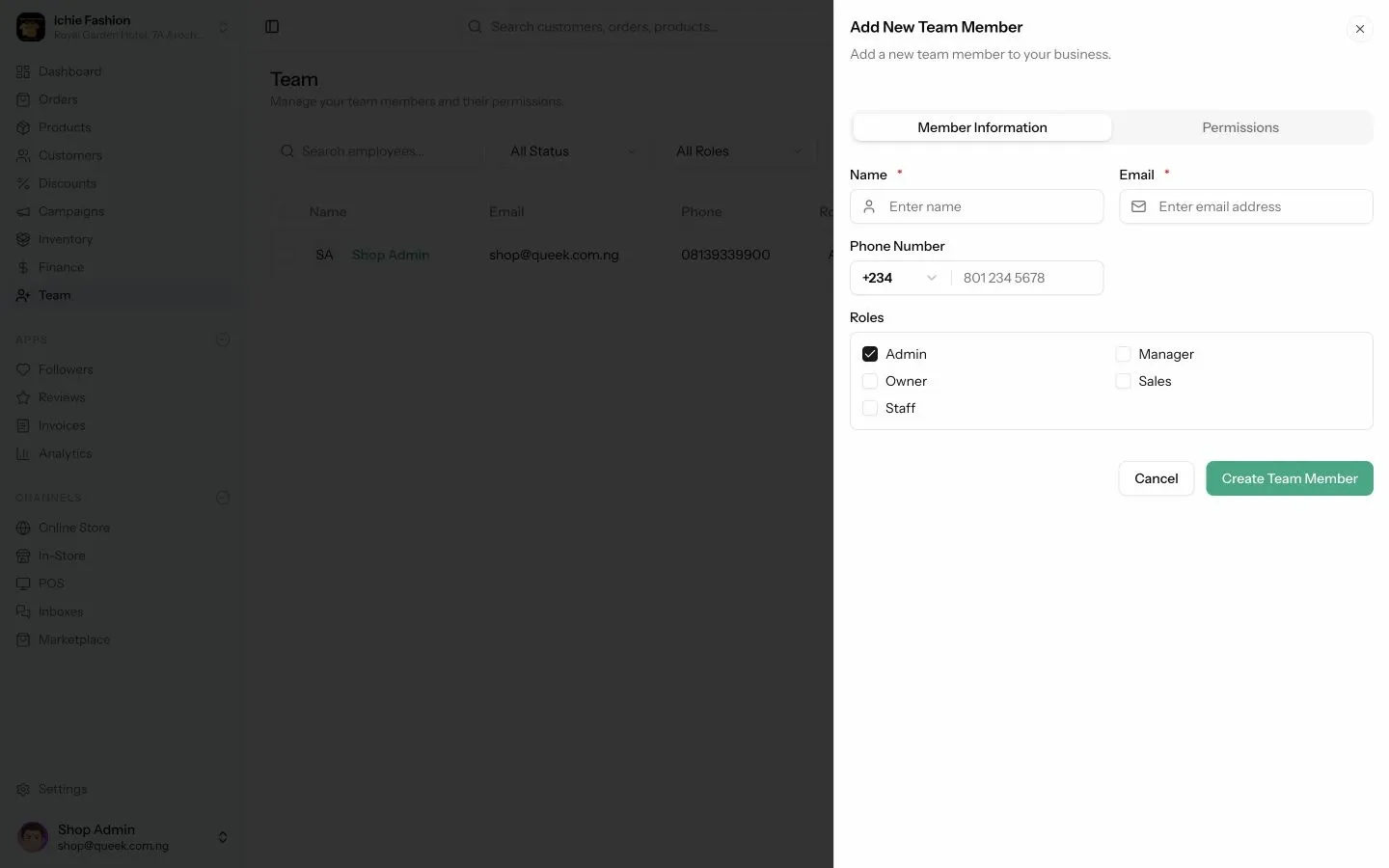
Check the desktop result
- The invitation went to the correct email.
- The role matches the teammate’s responsibilities.
- Pending and active members are easy to distinguish.
Add a teammate on mobile
- Tap Menu → Team, then tap Add Member.
- Enter the member’s Name and Email, and add a phone number if needed.
- Select the least-permissive role, then open Permissions and review the available switches.
- Tap Create team member. If the action is disabled, the current account or plan does not allow the change yet.
- Return to the team list and confirm the member’s role and status.
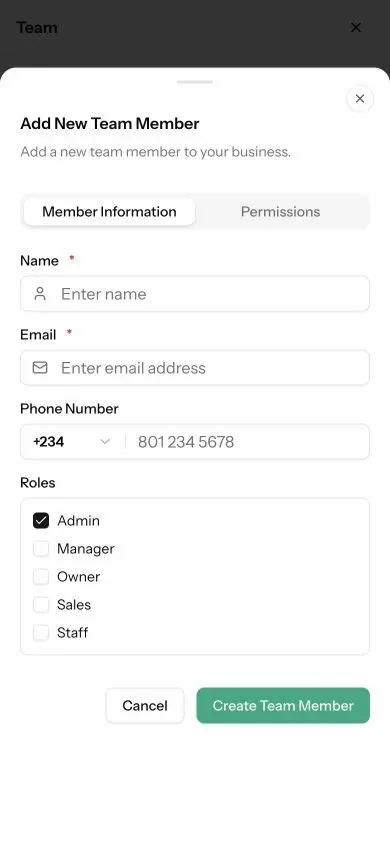
Check the mobile result
- The right person is invited.
- The role is correct.
- You can see whether the invite is pending or accepted.