
← All guides
Track stock and fix low-inventory issues
Read stock levels, find low-inventory products, and correct a quantity without losing track of what changed.
Inventory is only useful when the dashboard matches the shelf. Count first, then change the quantity.
Adjust stock on desktop
- Open Inventory in the sidebar and start on Overview.
- Check Low Stock and Out of Stock before changing anything. Use Audit Trail when you need to understand the last adjustment.
- Search for the product you counted and compare its dashboard quantity with the physical quantity.
- For one product, open it from the inventory list, replace its stock quantity, and save. For several products, open Quick Bulk Edit at
/inventory/items/quick-bulk-update, filter the list, select only the affected rows, and save the edited values. - Reopen the product and its history or Audit Trail to confirm the new quantity and adjustment record.
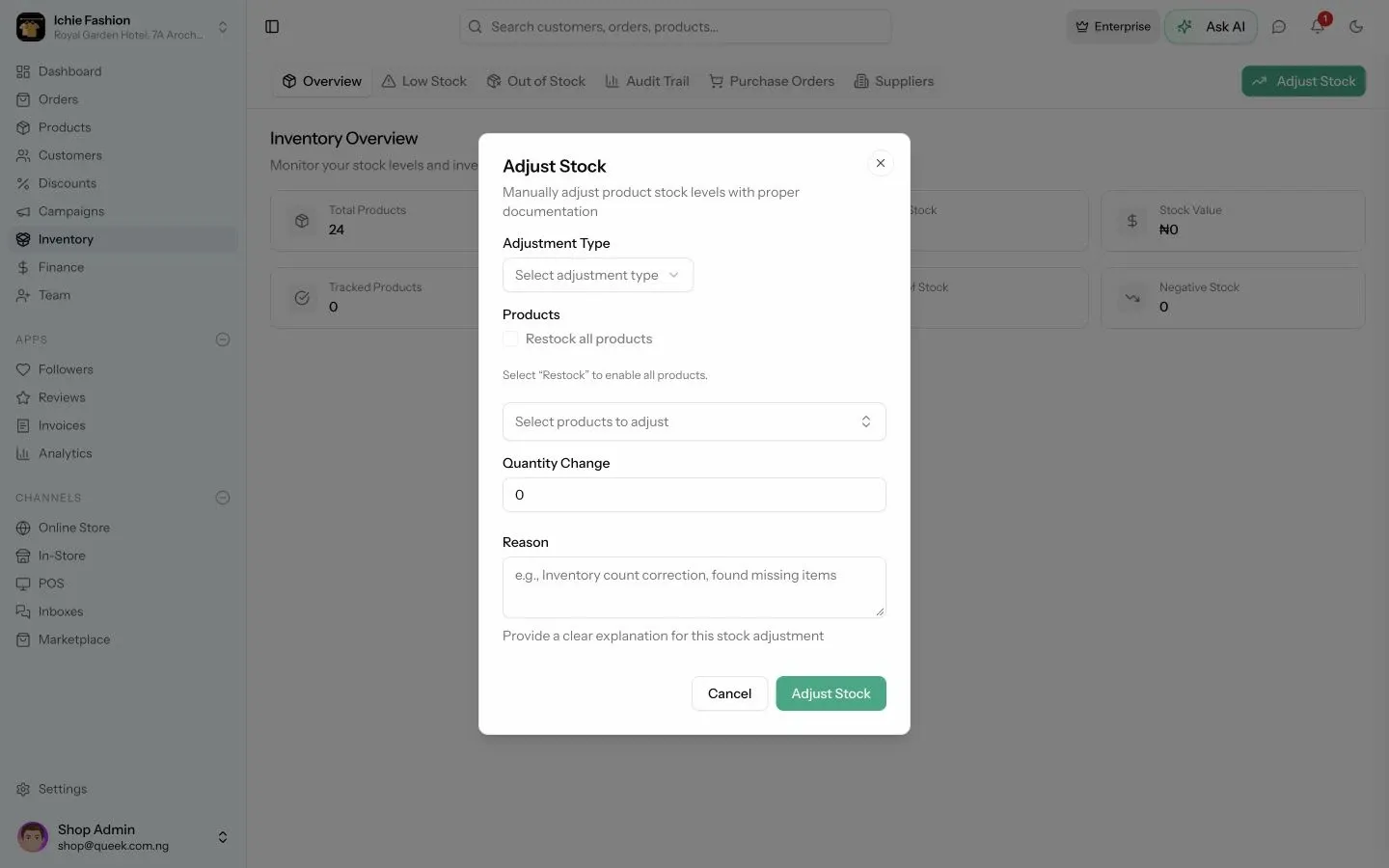
Desktop view: use the inventory list to find low-stock and out-of-stock items.
Check the desktop result
- The corrected quantity is visible in Inventory.
- Products at zero are no longer shown as available where stock tracking applies.
- The stock history explains the adjustment.
Adjust stock on mobile
- Open Menu → Inventory and start on Overview.
- Check Low Stock, Out of Stock, and Audit Trail before making a change.
- Search for the counted product and compare the dashboard quantity with the shelf quantity.
- Open the product, replace the stock value, and tap Save. For a large batch, open Quick Bulk Edit, filter the products, edit only the selected rows, and save.
- Reopen the product and its history to confirm the new quantity and adjustment record.
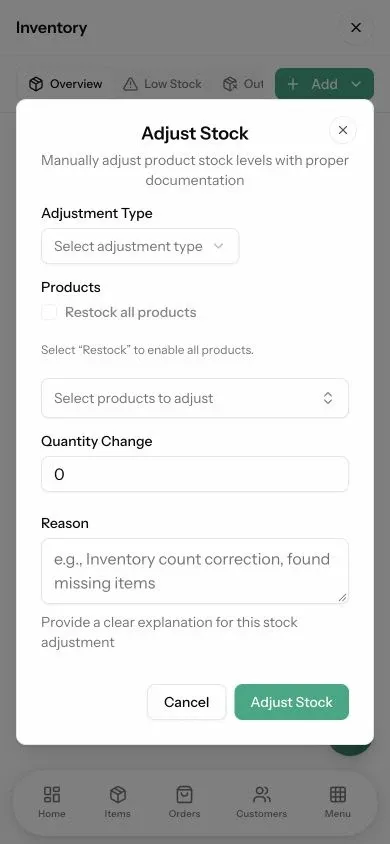
Mobile view: count first, then make one clear stock adjustment.
Check the mobile result
- The new quantity matches the physical count.
- The product availability reflects the new quantity.
- The adjustment is visible in the history.